Import PowerPoint Template Guide: Easy Steps for 2026

Struggling to make your presentations stand out in PowerPoint for 2026? You are definitely not alone. As more professionals aim for polished, engaging slides, knowing how to import powerpoint template can give you a crucial edge.

This guide walks you through the simplest, most current steps to transform your slides. You will learn about different template types, step-by-step instructions for Windows, Mac, and the web, as well as troubleshooting solutions.

Unlock the secrets to consistent branding, save valuable time, and capture your audience’s attention with ease. Let’s get started on making your next presentation your best yet.

Understanding PowerPoint Templates: Types and Benefits

Creating a standout presentation starts with understanding the foundation: PowerPoint templates. If you want to import powerpoint template files that instantly elevate your slides, it’s essential to know what they are and why they matter.

Understanding PowerPoint Templates: Types and Benefits

What Is a PowerPoint Template? Formats Explained

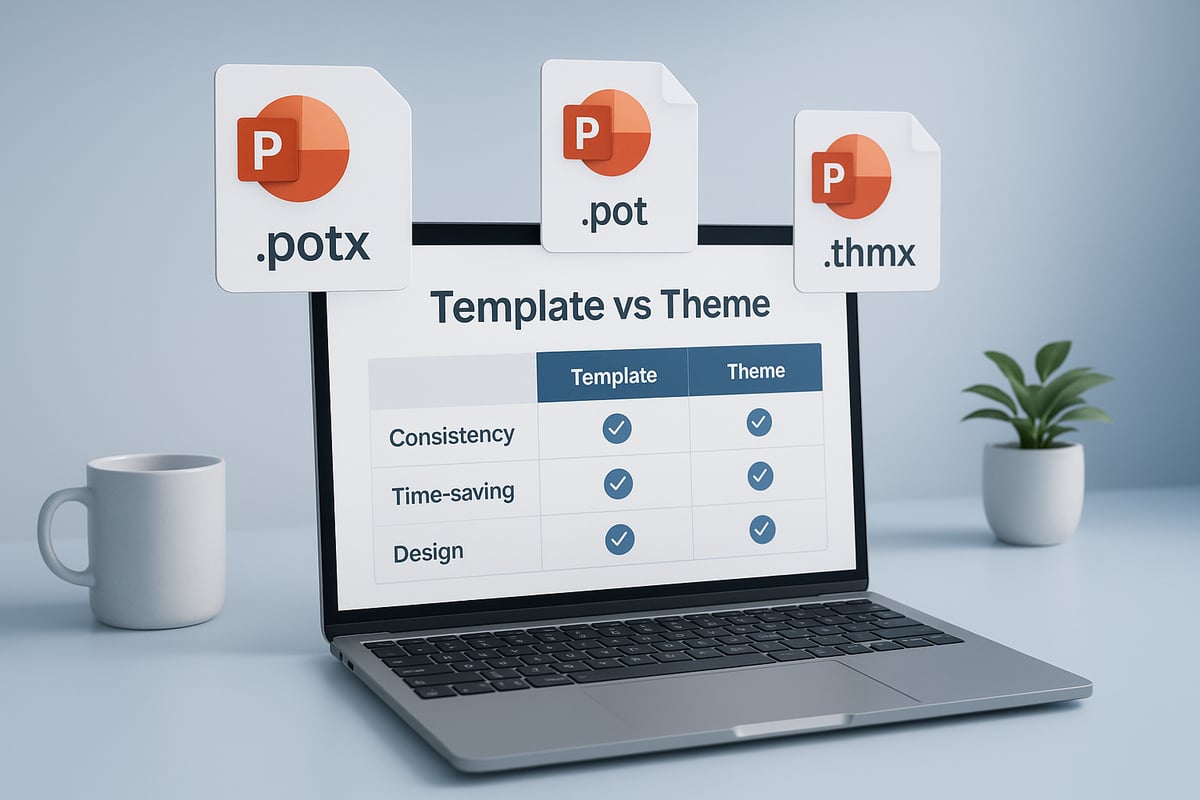
A PowerPoint template is a pre-designed file that defines the overall look and structure of your presentation. Templates come in several formats: .potx (modern template), .pot (older version), and .thmx (theme file). When you import powerpoint template files, you gain access to layouts, color schemes, fonts, and placeholders, all ready for customization.

These files act as blueprints, letting you build new presentations quickly without starting from scratch. Templates ensure every slide follows a consistent style and branding, which is crucial for business, education, and marketing.

Templates vs. Themes: What’s the Difference?

While both templates and themes shape the appearance of your slides, they serve different purposes. Templates combine master slides, layouts, and sometimes sample content. Themes, on the other hand, focus on colors, fonts, and effects applied across slides, but without predefined layouts.

Feature Template (.potx/.pot) Theme (.thmx)
Layouts Yes No
Master Slides Yes No
Color/Fonts Yes Yes
Sample Content Optional No

When you import powerpoint template files, you’re importing the complete structure, not just a color palette. This distinction is vital for anyone seeking a unified and professional presentation.

Key Benefits and Practical Use Cases

Why should you import powerpoint template files instead of building from scratch? The advantages are clear:

  • Saves time: No need to design every slide individually.
  • Ensures consistency: Every slide matches your brand or message.
  • Enhances professionalism: Polished designs impress any audience.
  • Boosts productivity: Teams can focus on content, not formatting.

Industry surveys reveal that over 70% of business presentations use templates for efficiency. Common use cases include:

  • Corporate branding decks for internal and external meetings
  • Academic presentations for lectures and research sharing
  • Investor pitch decks and marketing proposals

If you’re searching for inspiration or ready-to-use designs, explore options like Free minimal PowerPoint templates to kickstart your next project.

How Templates Improve Engagement and Why It Matters

Well-chosen templates don’t just save time—they also improve engagement and clarity. Audiences respond better to visuals that are organized and cohesive. For example, a corporate pitch deck using a branded template instantly communicates trust and reliability.

Selecting the right template when you import powerpoint template files is a strategic decision. It shapes how your message is received and remembered. The right template can mean the difference between a forgettable slideshow and a memorable, impactful presentation.

Preparing to Import: What You Need Before You Start

Getting ready to import powerpoint template successfully requires a few critical steps. By preparing properly, you will ensure a smooth, error-free experience and unlock the full potential of your chosen design. Let’s walk through each phase so you start with confidence.

Preparing to Import: What You Need Before You Start

Identifying and Downloading the Right Template

The first step when you import powerpoint template is to find a high-quality file that suits your presentation’s needs. Start by browsing trusted sources, such as Microsoft’s official library, SlideTeam, or reputable third-party sites. Always check that the template is available in formats compatible with PowerPoint 2026, like .potx, .thmx, or .pptx.

Verify licensing and copyright before downloading. Some sites offer free templates for personal use, while others require purchase or attribution. Avoid low-quality or unlicensed template files, as these can cause formatting issues or legal complications.

For example, if you need a corporate look, you might download a business template directly from Microsoft’s library. If you want detailed step-by-step guidance, consult the PowerPoint Template Import Guide for official instructions. Careful template selection ensures your import powerpoint template process starts off right.

Organizing Template Files for Easy Access

Once you download your template, proper file organization is essential for a seamless import powerpoint template workflow. Create a dedicated folder system, such as “Custom Office Templates” or “My Themes,” to store all your template files. This helps PowerPoint locate your templates quickly and keeps your workspace tidy.

Set your default template location within PowerPoint options for instant access. For example, on Windows, save templates to C:\Users\[YourName]\Documents\Custom Office Templates so they appear in the “Personal” or “Custom” gallery. Templates stored outside these folders may not show up when you attempt to import powerpoint template.

Here’s a quick checklist:

  • Use consistent folder names
  • Store templates by project or category
  • Regularly backup your template folder

A well-organized template library saves time and reduces frustration during your future projects.

Ensuring Compatibility and Version Readiness

Before you import powerpoint template, confirm that your software environment is fully compatible. Check your PowerPoint version and update to the 2026 release, as newer templates may include features unsupported by older versions. Periodically run updates to access the latest tools and security enhancements.

Be aware of differences between Windows, Mac, and web-based PowerPoint. For instance, some older .pot files might not display correctly in the 2026 version, requiring conversion to .potx or .thmx formats. If you notice formatting issues, update your template or PowerPoint to the latest version for best results.

Compatibility checks are crucial when you import powerpoint template across different platforms. Staying current ensures a smoother experience, allowing you to focus on content rather than troubleshooting technical glitches.

Step-by-Step Guide: How to Import PowerPoint Templates (Windows, Mac, Web)

Ready to elevate your presentations? This step-by-step guide will help you import powerpoint template files on Windows, Mac, and the web. By following these clear instructions, you'll ensure your slides look professional and consistent across any platform.

Whether you are working on a corporate report, an academic lecture, or a creative project, knowing how to import powerpoint template files is essential. Let's break down the process for each version so you can work seamlessly, no matter your device.

Step-by-Step Guide: How to Import PowerPoint Templates (Windows, Mac, Web)

Importing Templates on Windows

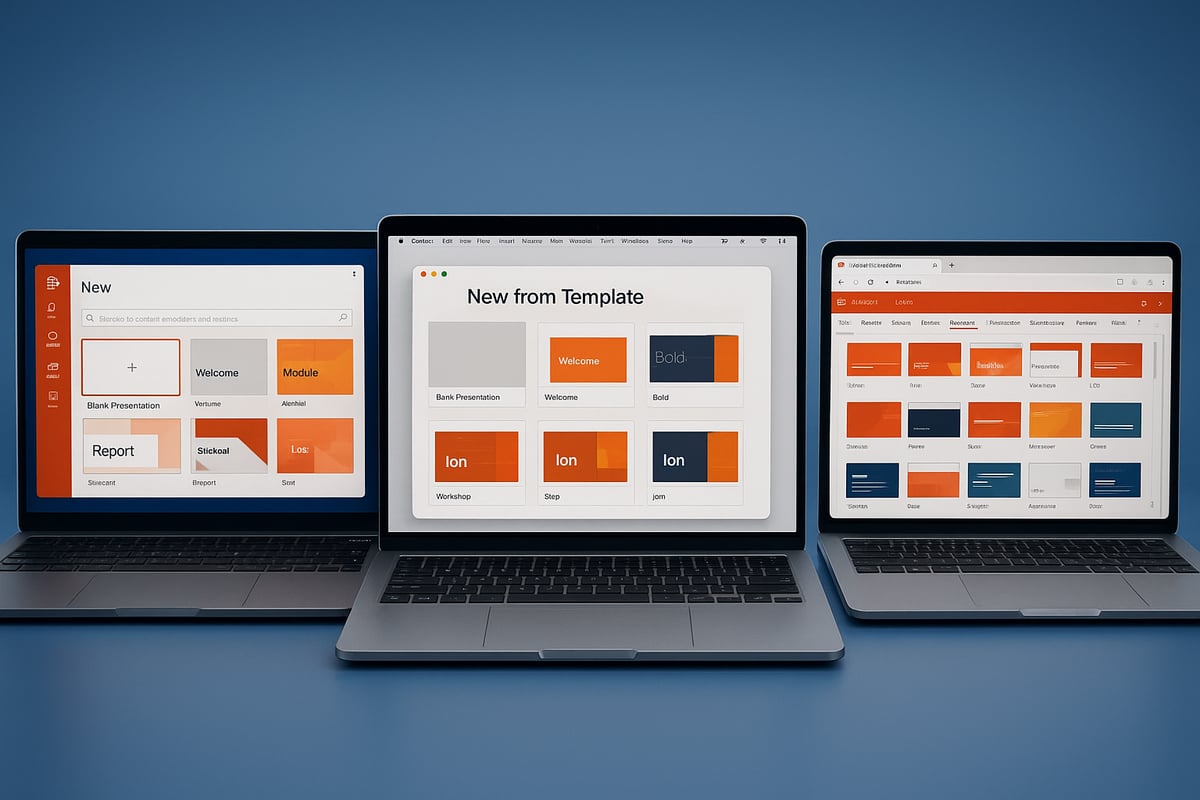
Importing a template in PowerPoint for Windows is straightforward. Start by opening PowerPoint and selecting File, then choose New. Here, you will see the option to browse available templates, both featured and personal.

To import powerpoint template files you've downloaded, click on the Personal or Custom tab. If you do not see your template, browse to its location. Supported formats include .potx, .pot, and .thmx. Once you select your file, PowerPoint will apply the template to a new presentation.

If you want to apply the template to an existing file, open your presentation, choose File, then Options, and select the Design tab. From here, you can browse for your template file and apply it. For further guidance, you may refer to Applying Templates to Existing Presentations for Microsoft's official instructions.

After you import powerpoint template files, use the Home > Layout option to adjust slide layouts as needed. This ensures all content matches the new design. For example, if you are working on a sales deck, applying a corporate branding template can instantly align your slides with your company's visual identity.

According to recent data, 60% of PowerPoint users prefer Windows for template management due to its flexibility and robust features. Remember, always save your imported template in the default folder, such as “Custom Office Templates,” for easy access in the future.

Importing Templates on Mac

If you are a Mac user, importing templates is just as simple. Launch PowerPoint, then select File and choose New from Template. This opens a gallery where you can browse featured and personal templates.

To import powerpoint template files you've downloaded, click My Themes or use the Browse option. Locate your .potx or .thmx file and select it. PowerPoint will open a new presentation with the selected template applied.

Sometimes, templates may not appear unless they are saved in the “My Themes” folder. To ensure easy access, move your template files into this folder before starting PowerPoint. After you import powerpoint template, you can adjust layouts by going to the Home tab and selecting Layout or Reset.

For instance, if you’re preparing an academic lecture, importing a template with predefined layouts and consistent styles can save you time and maintain a polished look. If you notice any discrepancies in fonts or colors, use the Slide Master view (View > Slide Master) to make global adjustments and maintain consistency.

A helpful insight for Mac users: manually organizing your templates in dedicated folders can streamline your workflow and prevent confusion. Always check for compatibility with your current version of PowerPoint to avoid any unexpected issues.

Importing Templates in PowerPoint for the Web

PowerPoint for the web offers flexibility for users who need to work online or collaborate with teams remotely. To begin, open PowerPoint for the web and start a new presentation.

Click the Design tab to access available themes. If you want to import powerpoint template files, the web version does not support direct .potx or .thmx import yet. Instead, create a new presentation in desktop PowerPoint using your desired template, save it as a .pptx file, and upload it to OneDrive or SharePoint.

Next, open the uploaded file in PowerPoint for the web. This workaround allows you to use the imported template's design and layouts. If you want to share the template with your team, simply share the presentation file via OneDrive or SharePoint, enabling others to start from your template as a base.

A key limitation: PowerPoint for the web does not support saving or editing templates in .potx format. It is best suited for simple import powerpoint template use and quick sharing. For advanced customization or template management, switch to the desktop version when possible.

For example, teams collaborating on a marketing proposal can use this method to ensure everyone starts with the same branded design. This approach simplifies teamwork and keeps presentations consistent, even across different devices.

Troubleshooting Common Issues When Importing Templates

Even with the latest features, you may run into problems when you import PowerPoint template files. Understanding these common issues and their solutions can help you save time and avoid frustration.

Troubleshooting Common Issues When Importing Templates

Template Not Showing Up or Not Applying Correctly

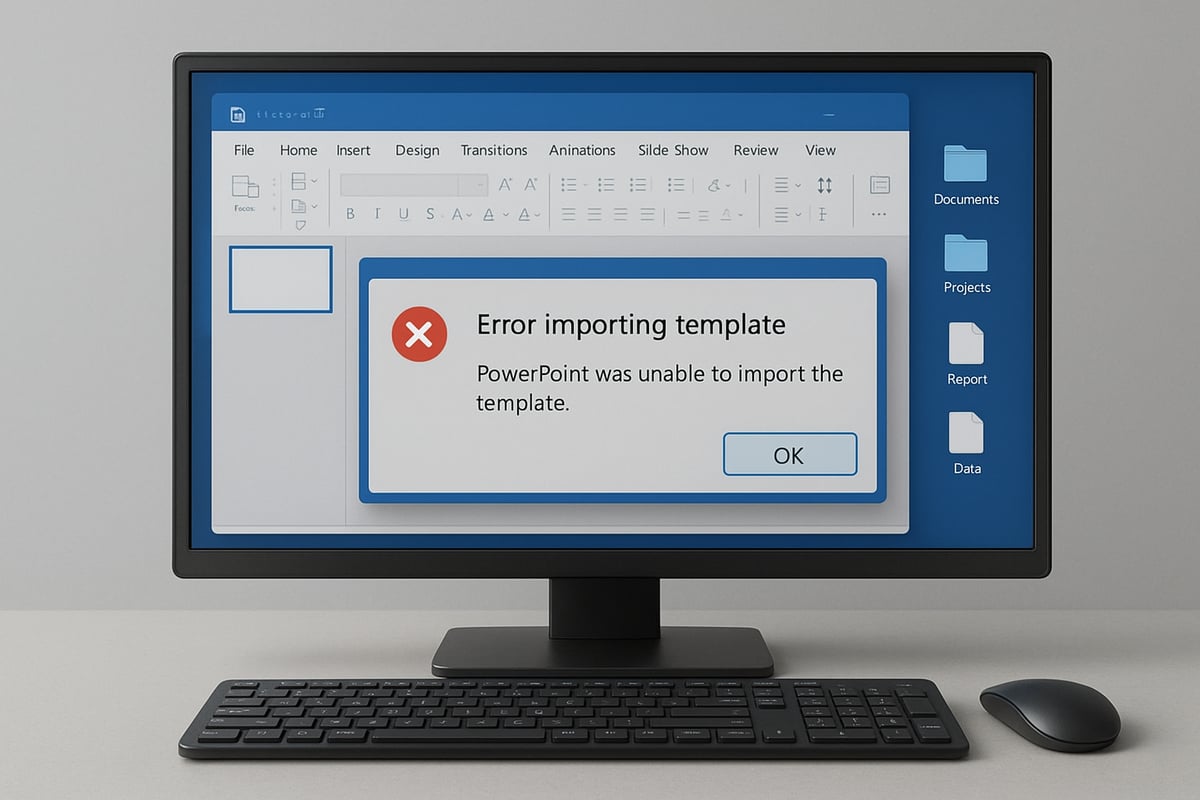
When you import PowerPoint template files, sometimes they do not appear in the gallery or fail to apply as expected. This is a frequent issue, especially on Windows, where folder paths matter.

Common causes include:

  • Saving templates outside the default folders.
  • Using unsupported file types (.potx, .pot, .thmx are supported).
  • Version mismatches between template and PowerPoint.

To fix these issues:

  • Move your file to the correct folder, such as C:\Users\[Name]\Documents\Custom Office Templates.
  • Make sure the file format matches what PowerPoint 2026 accepts.
  • Update PowerPoint to the latest version.

For example, if your template is not visible under the “Personal” tab, double-check the location and format. According to industry data, one in four users face this problem due to misplacement. If you want to create or refine your own templates to avoid such issues, see this guide on how to create an easy-to-use presentation template.

When you import PowerPoint template files, always verify the settings before assuming a template is missing.

Formatting and Layout Problems

Formatting glitches can occur after you import PowerPoint template files. You may notice placeholder misalignment, font substitutions, or color inconsistencies. These problems often arise when slide layouts do not match between your content and the imported template.

Here are some solutions:

  • Use the Home > Layout menu to reassign the correct layout to each slide.
  • Select Home > Reset to restore placeholders and default formatting.
  • Double-check that your fonts and color schemes are available on your system.

For instance, if your imported template distorts content, resetting the slides often restores the intended layout. This process helps ensure your imported template matches your design vision.

If you encounter persistent issues, review the master slides and layouts. Small adjustments can resolve most formatting errors after you import PowerPoint template files.

Embedded Fonts and Missing Elements

After you import PowerPoint template files, fonts or design elements may be missing. This usually happens when the template uses fonts not installed on your computer, or when elements are linked rather than embedded.

To resolve font issues:

  • Install the required fonts on your device before opening the presentation.
  • If you share files, consider exporting slides as PDF for fidelity.

For example, if a corporate font does not appear on a colleague’s computer, have them install the same font or use a substitute that closely matches. This ensures consistent appearance across devices when you import PowerPoint template files.

Compatibility with Older Templates

If you import PowerPoint template files created in older versions, you might face compatibility issues. Older .pot files may not fully support features in PowerPoint 2026.

To address this:

  • Convert or update old templates to .potx or .thmx format using the Save As option.
  • Open the template in PowerPoint 2026 and re-save it in the latest format.

For example, a legacy company template may require updating to work with modern features like enhanced animations or new layout options. Keeping templates current ensures smooth imports and helps you get the most from your import PowerPoint template process.

Customizing and Managing Imported Templates for Your Workflow

Adopting the right workflow after you import powerpoint template files is essential for effective presentations. With a few strategic customizations, you can ensure every slide aligns with your brand, message, and objectives. Let’s explore how to fine-tune templates, save and share your work, and maintain an organized library for ongoing success.

Editing Master Slides and Layouts

To personalize your presentations after you import powerpoint template files, start by accessing the Slide Master. Go to View > Slide Master in PowerPoint. Here, you can change colors, fonts, backgrounds, and placeholders across all slides at once.

Want to add your company logo to every slide? Insert it on the master slide, and it will appear on every layout automatically. Adjusting placeholders and text boxes on master layouts ensures consistency and saves time when building new presentations.

Consider exploring Contemporary PowerPoint template ideas for inspiration on modern styles and layouts. Remember, using the Slide Master effectively means each time you import powerpoint template designs, you can quickly align them with your current branding and content needs.

Saving and Sharing Your Custom Templates

Once you finish customizing, save your work as a template for future use. Click File > Save As, then select PowerPoint Template (*.potx) as the file type. Store your template in a location like C:\Users\[YourName]\Documents\Custom Office Templates for easy access.

To share your template with colleagues, upload it to a shared drive such as OneDrive or SharePoint. This approach lets your team import powerpoint template files and maintain a consistent visual identity across all presentations.

For smooth collaboration, encourage your team to save templates in standard locations. This helps PowerPoint recognize and display them in the Personal or Custom section, streamlining the workflow for everyone involved.

Best Practices for Template Organization

Efficient organization is crucial once you import powerpoint template files into your workflow. Use clear, descriptive names for each template, such as “2026_Marketing_Proposal” or “Academic_Lecture_Standard.” This makes templates easy to find and reduces confusion.

Establish a simple version control system. For example:

Template Name Version Last Updated
Sales_Deck_Standard v3.2 Jan 2026
Investor_Pitch_Modern v1.0 Feb 2026

Teams that maintain organized template libraries report creating presentations 30% faster. Schedule regular reviews to update templates, ensuring your imported designs stay current and relevant.

By following these steps, you transform how you import powerpoint template resources into a streamlined, professional workflow.

Advanced Tips: Maximizing the Impact of Imported Templates

Unlock the full power of your presentations by mastering advanced strategies to import PowerPoint template files. These tips help you go beyond basic design, enabling unique, professional, and audience-grabbing results.

Combining Multiple Templates or Themes

Did you know you can blend more than one template in a single deck? To import PowerPoint template elements from various sources, start by applying your primary template. Then, use the “Reuse Slides” feature to insert slides from another presentation with a different theme. This approach is perfect for merging a branded intro with a specialized data visualization segment. To maintain consistency, adjust slide masters and layouts as needed. This technique gives your presentation a fresh, dynamic look while keeping your main message on brand.

Custom Slide Layouts for Unique Needs

Sometimes, standard layouts do not fit your content. By accessing the Slide Master view, you can import PowerPoint template layouts or create new ones tailored to your requirements. Add custom placeholders, adjust color schemes, or design unique backgrounds. For example, create a layout specifically for a case study or interactive Q&A session. Custom layouts ensure every slide supports your narrative, making your message more memorable and visually engaging.

Templates for Different Presentation Types

Every audience and purpose requires a different approach. When you import PowerPoint template files, consider the end goal: business, education, or creative projects. For a corporate pitch, choose a clean, professional design with strong branding. Academic presentations might benefit from more structured layouts and citation slides. Creative projects can use bold colors and dynamic transitions. Sharing templates for collaboration is also easier than ever—see how Google Drive PowerPoint templates streamline teamwork and template access for distributed teams.

Enhancing Templates with Add-ins and Hybrid Approaches

Supercharge your imported templates by integrating third-party add-ins. Tools for charts, infographics, or animations can transform a basic import PowerPoint template into a cutting-edge presentation. Advanced users often develop hybrid templates that combine multiple themes, custom layouts, and interactive features. According to PowerPoint Usage Statistics 2025, presenters using these advanced features report significantly higher audience engagement and satisfaction. Mastering these options not only saves time but dramatically raises your presentation quality.

Frequently Asked Questions About Importing PowerPoint Templates

Navigating the process to import PowerPoint template files can raise a lot of questions, especially for users working across different platforms or encountering compatibility issues. Here are the most common queries answered clearly for 2026.

What file formats are supported in PowerPoint 2026?

PowerPoint 2026 supports several template formats: .potx, .pot, and .thmx for templates, as well as .pptx for presentations created from templates. When you import PowerPoint template files, always ensure your file matches one of these formats for seamless compatibility. Using unsupported formats may result in the template not appearing in the gallery or failing to apply correctly.

Can I use templates across different operating systems?

Yes, you can import PowerPoint template files on both Windows and Mac. However, some features or designs may look slightly different due to system font availability or layout rendering. To avoid issues, always test your template on the platforms your team uses. For web-based PowerPoint, templates must be applied as .pptx presentations since the web version does not support saving or importing .potx files directly.

How do I use PowerPoint templates in Google Slides?

While you cannot directly import PowerPoint template files into Google Slides as templates, you can open a .pptx file created from the template. Most formatting will transfer, but some advanced features may be lost. With the growing adoption of Google Slides—see Google Slides User Statistics 2025—it is increasingly common to create a master PowerPoint file, then convert it for Google Slides users. This approach works well for cross-platform team presentations, ensuring brand consistency even when switching between platforms.

We offer free 30-min consultation on the presentation design audit
and hiring the right visual 
comms professional, let’s talk!
Shedule a call
Shedule a call
"I understand" goes a step further into the cognitive dance of persuasion. It's where the audience begins to see the connections between the facts, to grasp the nuances of the problem and the elegance of the solution.
  • This is some text inside of a div block.
    lay out the facts clearly and compellingly. Use data to establish the ground reality, but remember that facts alone are like the individual strands of a tapestry—necessary but not complete.
    lay out the facts clearly and compellingly. Use data to establish the ground reality, but remember that facts alone are like the individual strands of a tapestry—necessary but not complete.
  • This is some text inside of a div block.
    lay out the facts clearly and compellingly. Use data to establish the ground reality, but remember that facts alone are like the individual strands of a tapestry—necessary but not complete.

We offer free 30-min consultation on the presentation design audit

and hiring the right visual 
comms professional, let’s talk!

Shedule a call

"I understand" goes a step further into the cognitive dance of persuasion. It's where the audience begins to see the connections between the facts, to grasp the nuances of the problem and the elegance of the solution.

  • - 1 -
    Consistency at Scale:

    Biotech Market Trends 2024: Tailoring Your Pitch Deck to Current Industry Dynamics.

  • - 2 -
    Efficiency and Speed:

    The traditional process of manually updating presentations is not only slow but also prone to bottlenecks, especially when dealing with large volumes of slides. Automation dramatically accelerates this process, enabling designers to apply changes across hundreds of slides in the time it would take to manually update a single one. This efficiency is a game-changer for agencies working under tight deadlines or managing multiple projects simultaneously.

  • - 3 -
    Enhanced Creativity:

    With the burden of manual updates lifted, designers can allocate more time and energy to the creative aspects of presentation design. This freedom allows for deeper exploration of innovative design concepts, experimentation with new visual storytelling techniques, and the development of more engaging and interactive presentations. Automation doesn't stifle creativity; it amplifies it, enabling designers to push the boundaries of what's possible in corporate presentation design.

  • - 4 -
    Error Reduction:

    Manual updates are inherently prone to inconsistencies and mistakes, from misaligned logos to incorrect font sizes. These errors can detract from the professionalism of a presentation and, by extension, the corporate image. Automation minimizes these risks by ensuring that updates are applied uniformly and accurately across all slides, enhancing the overall quality and integrity of the presentation.

  • - 5 -
    Cost-Effectiveness:

    The time savings afforded by automation directly translate to cost savings for both the design agency and its clients. By reducing the hours spent on manual updates, agencies can optimize their workflows and resources, allowing them to take on more projects without compromising on quality. This efficiency can also make high-quality presentation design services more affordable and accessible to a broader range of businesses.

Import PowerPoint Template Guide: Easy Steps for 2026
Learn how to import PowerPoint template files with ease in 2026. Follow expert steps for Windows, Mac, and web to create polished, professional presentations.

Struggling to make your presentations stand out in PowerPoint for 2026? You are definitely not alone. As more professionals aim for polished, engaging slides, knowing how to import powerpoint template can give you a crucial edge.

This guide walks you through the simplest, most current steps to transform your slides. You will learn about different template types, step-by-step instructions for Windows, Mac, and the web, as well as troubleshooting solutions.

Unlock the secrets to consistent branding, save valuable time, and capture your audience’s attention with ease. Let’s get started on making your next presentation your best yet.

Understanding PowerPoint Templates: Types and Benefits

Creating a standout presentation starts with understanding the foundation: PowerPoint templates. If you want to import powerpoint template files that instantly elevate your slides, it’s essential to know what they are and why they matter.
Understanding PowerPoint Templates: Types and Benefits

What Is a PowerPoint Template? Formats Explained

A PowerPoint template is a pre-designed file that defines the overall look and structure of your presentation. Templates come in several formats: .potx (modern template), .pot (older version), and .thmx (theme file). When you import powerpoint template files, you gain access to layouts, color schemes, fonts, and placeholders, all ready for customization.

These files act as blueprints, letting you build new presentations quickly without starting from scratch. Templates ensure every slide follows a consistent style and branding, which is crucial for business, education, and marketing.

Templates vs. Themes: What’s the Difference?

While both templates and themes shape the appearance of your slides, they serve different purposes. Templates combine master slides, layouts, and sometimes sample content. Themes, on the other hand, focus on colors, fonts, and effects applied across slides, but without predefined layouts.

Feature Template (.potx/.pot) Theme (.thmx)
Layouts Yes No
Master Slides Yes No
Color/Fonts Yes Yes
Sample Content Optional No

When you import powerpoint template files, you’re importing the complete structure, not just a color palette. This distinction is vital for anyone seeking a unified and professional presentation.

Key Benefits and Practical Use Cases

Why should you import powerpoint template files instead of building from scratch? The advantages are clear:

  • Saves time: No need to design every slide individually.
  • Ensures consistency: Every slide matches your brand or message.
  • Enhances professionalism: Polished designs impress any audience.
  • Boosts productivity: Teams can focus on content, not formatting.

Industry surveys reveal that over 70% of business presentations use templates for efficiency. Common use cases include:

  • Corporate branding decks for internal and external meetings
  • Academic presentations for lectures and research sharing
  • Investor pitch decks and marketing proposals

If you’re searching for inspiration or ready-to-use designs, explore options like Free minimal PowerPoint templates to kickstart your next project.

How Templates Improve Engagement and Why It Matters

Well-chosen templates don’t just save time—they also improve engagement and clarity. Audiences respond better to visuals that are organized and cohesive. For example, a corporate pitch deck using a branded template instantly communicates trust and reliability.

Selecting the right template when you import powerpoint template files is a strategic decision. It shapes how your message is received and remembered. The right template can mean the difference between a forgettable slideshow and a memorable, impactful presentation.

Preparing to Import: What You Need Before You Start

Getting ready to import powerpoint template successfully requires a few critical steps. By preparing properly, you will ensure a smooth, error-free experience and unlock the full potential of your chosen design. Let’s walk through each phase so you start with confidence.

Preparing to Import: What You Need Before You Start

Identifying and Downloading the Right Template

The first step when you import powerpoint template is to find a high-quality file that suits your presentation’s needs. Start by browsing trusted sources, such as Microsoft’s official library, SlideTeam, or reputable third-party sites. Always check that the template is available in formats compatible with PowerPoint 2026, like .potx, .thmx, or .pptx.

Verify licensing and copyright before downloading. Some sites offer free templates for personal use, while others require purchase or attribution. Avoid low-quality or unlicensed template files, as these can cause formatting issues or legal complications.

For example, if you need a corporate look, you might download a business template directly from Microsoft’s library. If you want detailed step-by-step guidance, consult the PowerPoint Template Import Guide for official instructions. Careful template selection ensures your import powerpoint template process starts off right.

Organizing Template Files for Easy Access

Once you download your template, proper file organization is essential for a seamless import powerpoint template workflow. Create a dedicated folder system, such as “Custom Office Templates” or “My Themes,” to store all your template files. This helps PowerPoint locate your templates quickly and keeps your workspace tidy.

Set your default template location within PowerPoint options for instant access. For example, on Windows, save templates to C:\Users\[YourName]\Documents\Custom Office Templates so they appear in the “Personal” or “Custom” gallery. Templates stored outside these folders may not show up when you attempt to import powerpoint template.

Here’s a quick checklist:

  • Use consistent folder names
  • Store templates by project or category
  • Regularly backup your template folder

A well-organized template library saves time and reduces frustration during your future projects.

Ensuring Compatibility and Version Readiness

Before you import powerpoint template, confirm that your software environment is fully compatible. Check your PowerPoint version and update to the 2026 release, as newer templates may include features unsupported by older versions. Periodically run updates to access the latest tools and security enhancements.

Be aware of differences between Windows, Mac, and web-based PowerPoint. For instance, some older .pot files might not display correctly in the 2026 version, requiring conversion to .potx or .thmx formats. If you notice formatting issues, update your template or PowerPoint to the latest version for best results.

Compatibility checks are crucial when you import powerpoint template across different platforms. Staying current ensures a smoother experience, allowing you to focus on content rather than troubleshooting technical glitches.

Step-by-Step Guide: How to Import PowerPoint Templates (Windows, Mac, Web)

Ready to elevate your presentations? This step-by-step guide will help you import powerpoint template files on Windows, Mac, and the web. By following these clear instructions, you'll ensure your slides look professional and consistent across any platform.

Whether you are working on a corporate report, an academic lecture, or a creative project, knowing how to import powerpoint template files is essential. Let's break down the process for each version so you can work seamlessly, no matter your device.
Step-by-Step Guide: How to Import PowerPoint Templates (Windows, Mac, Web)

Importing Templates on Windows

Importing a template in PowerPoint for Windows is straightforward. Start by opening PowerPoint and selecting File, then choose New. Here, you will see the option to browse available templates, both featured and personal.

To import powerpoint template files you've downloaded, click on the Personal or Custom tab. If you do not see your template, browse to its location. Supported formats include .potx, .pot, and .thmx. Once you select your file, PowerPoint will apply the template to a new presentation.

If you want to apply the template to an existing file, open your presentation, choose File, then Options, and select the Design tab. From here, you can browse for your template file and apply it. For further guidance, you may refer to Applying Templates to Existing Presentations for Microsoft's official instructions.

After you import powerpoint template files, use the Home > Layout option to adjust slide layouts as needed. This ensures all content matches the new design. For example, if you are working on a sales deck, applying a corporate branding template can instantly align your slides with your company's visual identity.

According to recent data, 60% of PowerPoint users prefer Windows for template management due to its flexibility and robust features. Remember, always save your imported template in the default folder, such as “Custom Office Templates,” for easy access in the future.

Importing Templates on Mac

If you are a Mac user, importing templates is just as simple. Launch PowerPoint, then select File and choose New from Template. This opens a gallery where you can browse featured and personal templates.

To import powerpoint template files you've downloaded, click My Themes or use the Browse option. Locate your .potx or .thmx file and select it. PowerPoint will open a new presentation with the selected template applied.

Sometimes, templates may not appear unless they are saved in the “My Themes” folder. To ensure easy access, move your template files into this folder before starting PowerPoint. After you import powerpoint template, you can adjust layouts by going to the Home tab and selecting Layout or Reset.

For instance, if you’re preparing an academic lecture, importing a template with predefined layouts and consistent styles can save you time and maintain a polished look. If you notice any discrepancies in fonts or colors, use the Slide Master view (View > Slide Master) to make global adjustments and maintain consistency.

A helpful insight for Mac users: manually organizing your templates in dedicated folders can streamline your workflow and prevent confusion. Always check for compatibility with your current version of PowerPoint to avoid any unexpected issues.

Importing Templates in PowerPoint for the Web

PowerPoint for the web offers flexibility for users who need to work online or collaborate with teams remotely. To begin, open PowerPoint for the web and start a new presentation.

Click the Design tab to access available themes. If you want to import powerpoint template files, the web version does not support direct .potx or .thmx import yet. Instead, create a new presentation in desktop PowerPoint using your desired template, save it as a .pptx file, and upload it to OneDrive or SharePoint.

Next, open the uploaded file in PowerPoint for the web. This workaround allows you to use the imported template's design and layouts. If you want to share the template with your team, simply share the presentation file via OneDrive or SharePoint, enabling others to start from your template as a base.

A key limitation: PowerPoint for the web does not support saving or editing templates in .potx format. It is best suited for simple import powerpoint template use and quick sharing. For advanced customization or template management, switch to the desktop version when possible.

For example, teams collaborating on a marketing proposal can use this method to ensure everyone starts with the same branded design. This approach simplifies teamwork and keeps presentations consistent, even across different devices.

Troubleshooting Common Issues When Importing Templates

Even with the latest features, you may run into problems when you import PowerPoint template files. Understanding these common issues and their solutions can help you save time and avoid frustration.
Troubleshooting Common Issues When Importing Templates

Template Not Showing Up or Not Applying Correctly

When you import PowerPoint template files, sometimes they do not appear in the gallery or fail to apply as expected. This is a frequent issue, especially on Windows, where folder paths matter.

Common causes include:

  • Saving templates outside the default folders.
  • Using unsupported file types (.potx, .pot, .thmx are supported).
  • Version mismatches between template and PowerPoint.

To fix these issues:

  • Move your file to the correct folder, such as C:\Users\[Name]\Documents\Custom Office Templates.
  • Make sure the file format matches what PowerPoint 2026 accepts.
  • Update PowerPoint to the latest version.

For example, if your template is not visible under the “Personal” tab, double-check the location and format. According to industry data, one in four users face this problem due to misplacement. If you want to create or refine your own templates to avoid such issues, see this guide on how to create an easy-to-use presentation template.

When you import PowerPoint template files, always verify the settings before assuming a template is missing.

Formatting and Layout Problems

Formatting glitches can occur after you import PowerPoint template files. You may notice placeholder misalignment, font substitutions, or color inconsistencies. These problems often arise when slide layouts do not match between your content and the imported template.

Here are some solutions:

  • Use the Home > Layout menu to reassign the correct layout to each slide.
  • Select Home > Reset to restore placeholders and default formatting.
  • Double-check that your fonts and color schemes are available on your system.

For instance, if your imported template distorts content, resetting the slides often restores the intended layout. This process helps ensure your imported template matches your design vision.

If you encounter persistent issues, review the master slides and layouts. Small adjustments can resolve most formatting errors after you import PowerPoint template files.

Embedded Fonts and Missing Elements

After you import PowerPoint template files, fonts or design elements may be missing. This usually happens when the template uses fonts not installed on your computer, or when elements are linked rather than embedded.

To resolve font issues:

  • Install the required fonts on your device before opening the presentation.
  • If you share files, consider exporting slides as PDF for fidelity.

For example, if a corporate font does not appear on a colleague’s computer, have them install the same font or use a substitute that closely matches. This ensures consistent appearance across devices when you import PowerPoint template files.

Compatibility with Older Templates

If you import PowerPoint template files created in older versions, you might face compatibility issues. Older .pot files may not fully support features in PowerPoint 2026.

To address this:

  • Convert or update old templates to .potx or .thmx format using the Save As option.
  • Open the template in PowerPoint 2026 and re-save it in the latest format.

For example, a legacy company template may require updating to work with modern features like enhanced animations or new layout options. Keeping templates current ensures smooth imports and helps you get the most from your import PowerPoint template process.

Customizing and Managing Imported Templates for Your Workflow

Adopting the right workflow after you import powerpoint template files is essential for effective presentations. With a few strategic customizations, you can ensure every slide aligns with your brand, message, and objectives. Let’s explore how to fine-tune templates, save and share your work, and maintain an organized library for ongoing success.

Editing Master Slides and Layouts

To personalize your presentations after you import powerpoint template files, start by accessing the Slide Master. Go to View > Slide Master in PowerPoint. Here, you can change colors, fonts, backgrounds, and placeholders across all slides at once.

Want to add your company logo to every slide? Insert it on the master slide, and it will appear on every layout automatically. Adjusting placeholders and text boxes on master layouts ensures consistency and saves time when building new presentations.

Consider exploring Contemporary PowerPoint template ideas for inspiration on modern styles and layouts. Remember, using the Slide Master effectively means each time you import powerpoint template designs, you can quickly align them with your current branding and content needs.

Saving and Sharing Your Custom Templates

Once you finish customizing, save your work as a template for future use. Click File > Save As, then select PowerPoint Template (*.potx) as the file type. Store your template in a location like C:\Users\[YourName]\Documents\Custom Office Templates for easy access.

To share your template with colleagues, upload it to a shared drive such as OneDrive or SharePoint. This approach lets your team import powerpoint template files and maintain a consistent visual identity across all presentations.

For smooth collaboration, encourage your team to save templates in standard locations. This helps PowerPoint recognize and display them in the Personal or Custom section, streamlining the workflow for everyone involved.

Best Practices for Template Organization

Efficient organization is crucial once you import powerpoint template files into your workflow. Use clear, descriptive names for each template, such as “2026_Marketing_Proposal” or “Academic_Lecture_Standard.” This makes templates easy to find and reduces confusion.

Establish a simple version control system. For example:

Template Name Version Last Updated
Sales_Deck_Standard v3.2 Jan 2026
Investor_Pitch_Modern v1.0 Feb 2026

Teams that maintain organized template libraries report creating presentations 30% faster. Schedule regular reviews to update templates, ensuring your imported designs stay current and relevant.

By following these steps, you transform how you import powerpoint template resources into a streamlined, professional workflow.

Advanced Tips: Maximizing the Impact of Imported Templates

Unlock the full power of your presentations by mastering advanced strategies to import PowerPoint template files. These tips help you go beyond basic design, enabling unique, professional, and audience-grabbing results.

Combining Multiple Templates or Themes

Did you know you can blend more than one template in a single deck? To import PowerPoint template elements from various sources, start by applying your primary template. Then, use the “Reuse Slides” feature to insert slides from another presentation with a different theme. This approach is perfect for merging a branded intro with a specialized data visualization segment. To maintain consistency, adjust slide masters and layouts as needed. This technique gives your presentation a fresh, dynamic look while keeping your main message on brand.

Custom Slide Layouts for Unique Needs

Sometimes, standard layouts do not fit your content. By accessing the Slide Master view, you can import PowerPoint template layouts or create new ones tailored to your requirements. Add custom placeholders, adjust color schemes, or design unique backgrounds. For example, create a layout specifically for a case study or interactive Q&A session. Custom layouts ensure every slide supports your narrative, making your message more memorable and visually engaging.

Templates for Different Presentation Types

Every audience and purpose requires a different approach. When you import PowerPoint template files, consider the end goal: business, education, or creative projects. For a corporate pitch, choose a clean, professional design with strong branding. Academic presentations might benefit from more structured layouts and citation slides. Creative projects can use bold colors and dynamic transitions. Sharing templates for collaboration is also easier than ever—see how Google Drive PowerPoint templates streamline teamwork and template access for distributed teams.

Enhancing Templates with Add-ins and Hybrid Approaches

Supercharge your imported templates by integrating third-party add-ins. Tools for charts, infographics, or animations can transform a basic import PowerPoint template into a cutting-edge presentation. Advanced users often develop hybrid templates that combine multiple themes, custom layouts, and interactive features. According to PowerPoint Usage Statistics 2025, presenters using these advanced features report significantly higher audience engagement and satisfaction. Mastering these options not only saves time but dramatically raises your presentation quality.

Frequently Asked Questions About Importing PowerPoint Templates

Navigating the process to import PowerPoint template files can raise a lot of questions, especially for users working across different platforms or encountering compatibility issues. Here are the most common queries answered clearly for 2026.

What file formats are supported in PowerPoint 2026?

PowerPoint 2026 supports several template formats: .potx, .pot, and .thmx for templates, as well as .pptx for presentations created from templates. When you import PowerPoint template files, always ensure your file matches one of these formats for seamless compatibility. Using unsupported formats may result in the template not appearing in the gallery or failing to apply correctly.

Can I use templates across different operating systems?

Yes, you can import PowerPoint template files on both Windows and Mac. However, some features or designs may look slightly different due to system font availability or layout rendering. To avoid issues, always test your template on the platforms your team uses. For web-based PowerPoint, templates must be applied as .pptx presentations since the web version does not support saving or importing .potx files directly.

How do I use PowerPoint templates in Google Slides?

While you cannot directly import PowerPoint template files into Google Slides as templates, you can open a .pptx file created from the template. Most formatting will transfer, but some advanced features may be lost. With the growing adoption of Google Slides—see Google Slides User Statistics 2025—it is increasingly common to create a master PowerPoint file, then convert it for Google Slides users. This approach works well for cross-platform team presentations, ensuring brand consistency even when switching between platforms.


News & Updates...

Master business PowerPoint presentation skills for 2026 with proven strategies, cutting-edge design trends, AI tools, and actionable tips for executive impact.

Discover 9 essential strategy ppt slides to elevate your 2026 presentations with clarity, engagement, and measurable impact. Transform your results today.