
Canva PowerPoint Design Guide: Unlock Creative Presentations 2026
The demand for visually impactful presentations is skyrocketing as we approach 2026. Modern professionals need more than just slides; they require engaging stories and creative visuals that captivate audiences. Enter canva powerpoint design, a game-changer that unlocks new levels of creativity and efficiency for anyone building presentations.
This guide is your roadmap to mastering canva powerpoint design. You will discover actionable strategies, step-by-step instructions, and expert tips for crafting standout decks. Explore Canva's powerful features, design best practices, advanced customization, seamless collaboration, and the latest trends shaping the future of presentations.
Ready to transform your presentations with effortless creativity? Let’s dive in and unlock your potential.
Why Choose Canva for PowerPoint Design?
The landscape of presentations is evolving rapidly. Organizations and professionals are searching for tools that offer flexibility, creativity, and efficiency. Canva PowerPoint design stands out as a game-changer for those wanting to elevate their presentations in 2026.
The Evolution of Presentation Design Tools
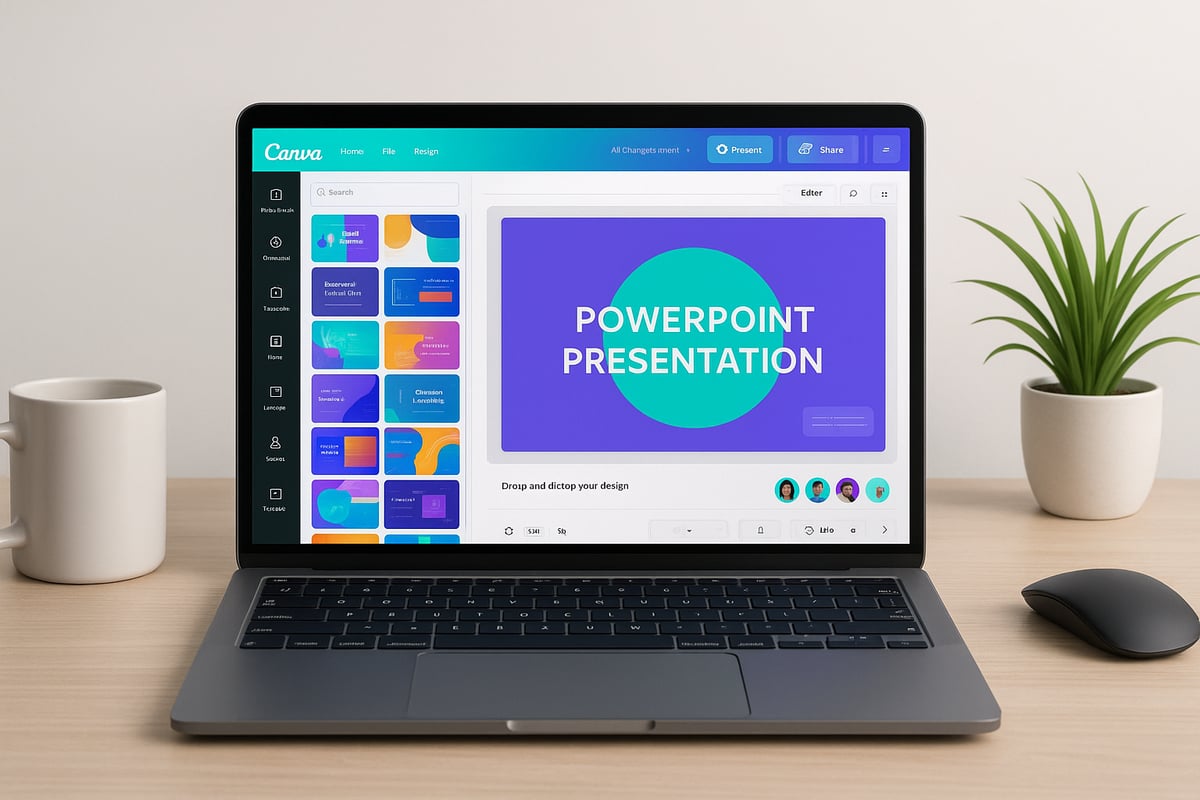
From 2020 to 2026, presentation software has shifted from static, traditional platforms to dynamic, cloud-based solutions. Where PowerPoint once dominated, users now expect visually rich, interactive experiences. Canva PowerPoint design meets these expectations by prioritizing visual storytelling and an intuitive user experience.
Today, 65% of professionals prefer online design platforms, reflecting a major industry change. This shift impacts business communication and branding, as teams now demand tools that support creativity, collaboration, and fast turnaround times. The surge in cloud-based design tools has transformed how organizations approach presentation creation and delivery.
Canva’s Unique Advantages for PowerPoint Users
Canva PowerPoint design offers a user-friendly drag-and-drop interface suitable for beginners and advanced designers alike. Its extensive asset library features over 250,000 templates and more than 100 million images, icons, and illustrations. Users can seamlessly export projects to PowerPoint format, ensuring compatibility and easy sharing.
Accessibility is a key strength, with both mobile and web platforms allowing edits from anywhere. Canva's user base soared to 135 million by 2026, a testament to its widespread adoption. Compared to legacy tools, Canva PowerPoint design delivers flexibility and a richer design experience. For more on Canva’s user growth and impact, see Canva's User Growth and Design Statistics.
In addition, Canva's collaborative features and real-time editing empower teams to work together efficiently. Unlike traditional PowerPoint, Canva supports instant feedback, quicker revisions, and creative brainstorming in one space.
Cost-Effectiveness and Scalability
Canva PowerPoint design is accessible through Free and Pro plans, making it suitable for startups, SMEs, and large organizations. Here’s a quick comparison:
| Feature | Free Plan | Pro Plan |
|---|---|---|
| Templates | Limited | Full access |
| Assets | Basic | Premium |
| Brand Kit | No | Yes |
| Team Features | Basic | Advanced |
Businesses benefit from significant savings, with reports showing up to 40% reduction in design costs. Canva PowerPoint design eliminates the need for expensive licenses, providing scalable solutions for growing teams. Collaboration is efficient and cost-effective, making it a smart choice for organizations of any size.
Real-World Success Stories
Many companies have transformed their communication with Canva PowerPoint design. A tech startup reported a 30% increase in investor engagement after switching to Canva-designed decks. In the education sector, teachers create engaging lessons faster, while finance professionals use data-driven templates for clear, impactful reporting.
Marketing teams cite substantial time savings and improved outcomes, as Canva PowerPoint design streamlines the entire creation process. Testimonials highlight how easy collaboration and visually compelling slides lead to better audience engagement and business results.
Accessibility and Inclusivity
Canva PowerPoint design is committed to accessibility, providing ADA-compliant templates and features. Multilingual support enables global teams to collaborate without language barriers. Even Fortune 500 companies have adopted Canva’s accessibility tools, ensuring presentations are inclusive and effective for every audience member.
Getting Started: Setting Up Canva for PowerPoint Presentations
Setting up for successful canva powerpoint design begins with the right foundation. Whether you are new to Canva or transitioning from traditional tools, following these steps ensures your presentations stand out from the very first slide.
Creating and Customizing Your Canva Account
To begin your canva powerpoint design journey, sign up for a Canva account using your email, Google, or single sign-on. This process is straightforward and takes only a few minutes.
Choose the plan that fits your needs: Free, Pro, or Teams. Free users access thousands of templates, while Pro and Teams unlock advanced features, such as unlimited brand kits and premium assets. Setting up a brand kit is vital for consistent presentations—upload your logo, define brand colors, and select preferred fonts.
Business users benefit from robust security options, including two-factor authentication and team permission controls. By customizing your account and brand kit, you streamline future canva powerpoint design projects and reinforce your visual identity.
Navigating Canva’s Interface
The Canva interface is designed for efficiency, making canva powerpoint design accessible to everyone. The dashboard organizes your Projects, Folders, and Templates, providing a clear overview of your work.
Quickly access PowerPoint templates through the search bar or the "Presentations" section. For teams, folders and shared workspaces help manage assets and drafts. Custom labeling and color-coded folders can further organize your canva powerpoint design resources.
A recent survey found that 70% of users believe this interface boosts productivity. With everything in one place, you can focus on creativity and collaboration rather than searching for files or assets.
Selecting the Perfect PowerPoint Template
Selecting the right template is crucial for effective canva powerpoint design. Start by filtering templates by industry, style, or specific use cases like pitch decks and reports. Preview templates to ensure their structure fits your goals, then customize layouts, colors, and images to match your brand.
For inspiration or additional options, you can explore the best free PowerPoint templates to see current design trends and adapt ideas in your Canva projects.
Financial firms, for instance, often rely on data-centric templates that deliver clarity and professionalism. Always align your template choice with your presentation objectives for maximum impact.
Importing and Exporting PowerPoint Files
Canva streamlines the canva powerpoint design workflow by allowing you to import existing .pptx files for redesign. Simply upload your file, and Canva will convert your slides for editing.
Once your design is complete, export your presentation in multiple formats: .pptx for PowerPoint, PDF for sharing, or video for dynamic delivery. Canva preserves formatting as closely as possible, but always review exported files for consistency.
If you encounter issues during import or export, check file sizes and font compatibility. These quick troubleshooting steps ensure a smooth canva powerpoint design process from start to finish.
Step-by-Step Canva PowerPoint Design Workflow
Mastering the canva powerpoint design process means following a clear, structured workflow. Each step unlocks new creative possibilities while ensuring your presentation remains polished and professional.
Step 1: Planning Your Presentation Structure
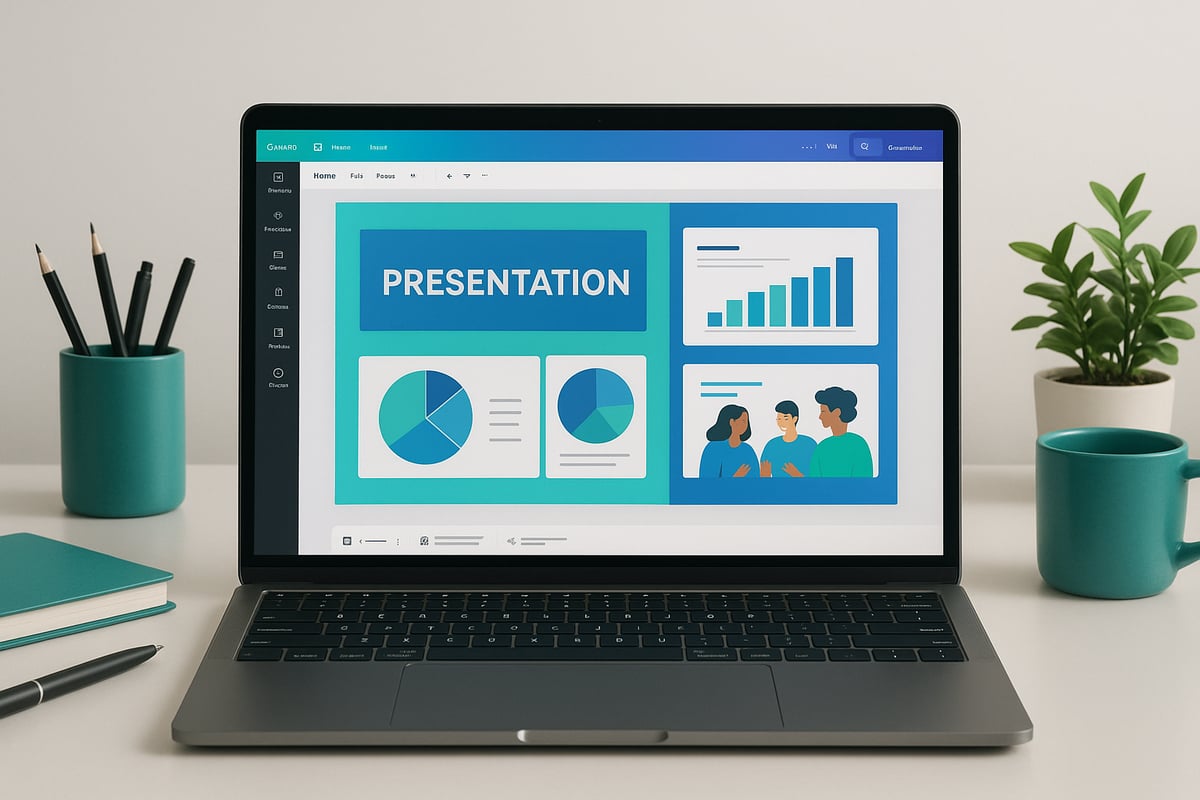
The foundation of every effective canva powerpoint design is thoughtful planning. Start by defining your core objectives and understanding your target audience. Consider what action or insight you want your viewers to take away.
Outline your key sections using Canva’s whiteboard or mind-mapping tools. This helps you visualize the flow and ensures your message is clear from start to finish. For example, a tech pitch deck might use a narrative arc: problem, solution, product demo, and call to action.
Storyboarding your canva powerpoint design at this early stage streamlines the rest of the process. It also ensures your content is well-organized and impactful.
Step 2: Customizing Slide Layouts and Themes
With your structure in place, customize slide layouts to reflect your brand’s identity. Canva powerpoint design excels here, letting you modify or create master slides for consistent formatting. Apply your brand’s colors, logos, and fonts to every slide.
For advanced consistency, explore how to use master slides in Canva. This approach ensures every element aligns perfectly across your deck, boosting recall and professionalism.
Remember, using a unified theme throughout your canva powerpoint design increases audience trust and recognition. Take time to fine-tune layouts for a seamless visual experience.
Step 3: Integrating Visual Elements
Bring your canva powerpoint design to life by integrating high-quality visuals. Tap into Canva’s extensive stock image, icon, and illustration libraries, or upload your own branded assets.
Use charts, graphs, and infographics to illustrate complex ideas clearly. For example, a financial dashboard slide can feature dynamic data visuals to drive key points home.
Maintain visual harmony by spacing elements evenly and avoiding clutter. Consistent use of visuals in your canva powerpoint design increases engagement and helps your message resonate.
Step 4: Enhancing with Animation and Transitions
Animations and transitions add polish to your canva powerpoint design. Apply subtle slide and element animations to guide attention or emphasize important content.
Set custom timings for transitions between slides or specific elements. Preview the effects to ensure they enhance, not distract, from your narrative. For instance, a product demo might use animated process flows to illustrate step-by-step features.
Thoughtful animation in your canva powerpoint design keeps your audience engaged and supports a smooth storytelling pace.
Step 5: Collaborating and Sharing with Teams
Collaboration is seamless with canva powerpoint design tools. Invite colleagues to edit in real time, leave comments, and assign roles or permissions for efficient teamwork.
Use version control to track changes and revert if needed. This collaborative environment reduces project turnaround by 25 percent, keeping everyone aligned and productive.
Teams can work simultaneously on different slides, accelerating the canva powerpoint design process and ensuring every voice is heard.
Step 6: Finalizing and Exporting Your Presentation
Before sharing, review your canva powerpoint design for consistency and clarity. Double-check for typos, alignment issues, and cohesive branding.
Export your presentation to .pptx, PDF, video, or interactive formats. Canva makes it easy to maintain formatting fidelity during export. Share your file via direct link, download, or present live.
If you encounter import or export issues, consult Canva’s help resources to resolve common formatting problems and ensure your canva powerpoint design is presentation-ready.
Step 7: Presenting Directly from Canva
Presenting from Canva offers a streamlined experience. Use Present mode to access interactive features like Q and A, timer, and presenter notes during your session.
This is ideal for remote team meetings, allowing live feedback and engagement. Your canva powerpoint design remains crisp and interactive, no matter where your audience is located.
With these steps, you can confidently deliver standout presentations using canva powerpoint design from start to finish.
Advanced Canva PowerPoint Design Techniques
Advanced features in canva powerpoint design empower professionals to create truly engaging and memorable presentations. Mastering these techniques allows you to move beyond basic slides and deliver experiences that captivate and inform.
Leveraging Custom Animations and Video
Bring your canva powerpoint design to life by integrating custom animations and video. Start by embedding video clips or GIFs directly into your slides to provide context or demonstrate key concepts. Use Canva’s animation panel to assign motion paths to images, text, or icons, making each transition smooth and engaging.
Experiment with video backgrounds for dynamic title slides. These moving visuals create a strong first impression. Adjust animation timings to highlight essential points, ensuring your message gets the spotlight. For example, a marketing deck can open with a branded video intro, followed by animated process flows that guide viewers through your story.
Animations and video, when used thoughtfully, boost audience retention and make your narrative more persuasive.
Data Visualization and Infographics
Advanced data visuals are a hallmark of effective canva powerpoint design. Use Canva’s chart builder to customize bar graphs, pie charts, and line diagrams. Tailor colors and labels to match your brand and clarify complex information.
Infographics combine text, icons, and visuals to illustrate trends, timelines, or comparisons. Interactive infographics can be enhanced with clickable elements or hover-over details. For presentations that require real-time data, integrate updated visuals to keep your slides current.
For further inspiration on integrating infographics, see Infographics for PowerPoint presentations. With these tools, your data becomes both accessible and compelling.
Building Interactive Presentations
Interactivity sets modern canva powerpoint design apart. Use hyperlinks to create non-linear navigation, allowing viewers to jump between slides or external resources. Embed polls or quizzes to encourage participation during live sessions.
Clickable prototypes and demos are invaluable for product teams. For example, linking roadmap milestones or feature previews within slides enables seamless exploration. Interactive elements foster engagement and make your message more memorable.
Test your interactive features before presenting to ensure a smooth experience for every audience.
Integrating Third-Party Apps and Extensions
Extend the power of canva powerpoint design by connecting with third-party applications. Canva integrates with popular platforms, boosting productivity and collaboration.
| App/Extension | Functionality |
|---|---|
| Google Drive | File storage and sync |
| Slack | Team notifications |
| Dropbox | Asset management |
| Zapier | Workflow automation |
Use plugins to speed up routine tasks, like automatic report generation for sales teams. These integrations keep your workflow efficient and your content always accessible.
Assign permissions for team members, ensuring everyone collaborates securely and effectively.
Optimizing for Mobile and Hybrid Presentations
With canva powerpoint design, your presentations are accessible across all devices. Design slides using responsive layouts and test them on both desktop and mobile screens. For hybrid and virtual events, use Canva’s mobile-friendly templates to ensure clarity and legibility.
- Choose large, readable fonts.
- Minimize dense text blocks.
- Preview transitions on smartphones and tablets.
As more presentations are viewed remotely, optimizing for every platform guarantees your message reaches your audience, wherever they are.
Design Best Practices for Impactful Canva PowerPoint Presentations
Creating memorable presentations with canva powerpoint design means combining strategy, creativity, and precision. Following proven best practices ensures your slides engage, inform, and inspire every audience. Let us break down the essentials for success, from storytelling to analytics.
Visual Storytelling Principles
A compelling canva powerpoint design starts with a strong narrative arc. Storytelling transforms data and concepts into memorable experiences. Use visuals to support key points, not overpower them. Infographics, icons, and imagery should clarify your message and guide the viewer's eye.
Balance text and visuals for clarity. Too much text overwhelms, while too many images can dilute meaning. Consider the flow—each slide should build on the last, leading to a clear conclusion. Explore Canva's 2025 Design Trends Toolkit for inspiration on current storytelling techniques.
TED-style presentations are a great reference: they use striking visuals, concise text, and a logical sequence to keep audiences engaged. With canva powerpoint design, weave your story visually and verbally for maximum impact.
Consistency and Branding
Consistency is the backbone of professional canva powerpoint design. Apply your brand kit—logos, color palettes, and fonts—across every slide. This unified look reinforces your message and strengthens brand recognition.
Maintain visual coherence by aligning elements, using uniform spacing, and sticking to a set font hierarchy. Use master slides or templates to standardize layouts, ensuring each section flows seamlessly into the next.
Consider this table for a quick branding checklist:
| Branding Element | Best Practice | Example Use |
|---|---|---|
| Logo | Place on each slide | Bottom right corner |
| Colors | Match brand palette | Accent elements |
| Fonts | Limit to two complementary | Headers & body text |
A financial firm’s pitch deck, for example, benefits from this approach: investors instantly recognize the brand and trust its professionalism. Consistency in canva powerpoint design builds credibility and recall.
Accessibility and Inclusivity in Design
Effective canva powerpoint design is accessible to all. Choose color schemes with strong contrast and avoid problematic combinations for color blindness. Use readable, sans-serif fonts at a minimum of 18pt for body text.
Always add alt text to images, charts, and infographics so screen readers can interpret content. Keep layouts clean and navigation intuitive for users with mobility challenges. For global teams, leverage Canva’s multilingual support to reach a wider audience.
Academic presentations that meet ADA standards demonstrate leadership in inclusivity. Accessible canva powerpoint design ensures everyone benefits from your message, regardless of ability.
Avoiding Common Design Mistakes
Even the best ideas can be lost if slides are cluttered or inconsistent. Avoid overcrowding with information; aim for one idea per slide. Align elements precisely and use adequate spacing to prevent a chaotic appearance.
Ensure contrast between text and background colors for readability. Inconsistent use of fonts or colors can confuse your audience. For practical guidance, review these Creative PowerPoint design tips to sidestep common pitfalls.
Data shows that 60 percent of failed presentations cite design errors as a cause. Mastering these fundamentals will elevate your canva powerpoint design and help you stand out.
Measuring Presentation Effectiveness
Continuous improvement is key to successful canva powerpoint design. Collect feedback from your audience through surveys or live polls. Use engagement analytics, when available, to track which slides resonate most.
A/B testing is a valuable strategy. Create two versions of a slide and compare results to optimize content and visuals. Iterate based on real-world responses for measurable gains.
Marketing teams, for example, have increased lead generation by 20 percent after revising slides based on feedback. By measuring and refining your canva powerpoint design, you ensure every presentation achieves its goals.
The Future of Canva PowerPoint Design: Trends and Innovations for 2026
The landscape of canva powerpoint design is rapidly evolving, driven by technological advancements and user demands for more engaging presentation experiences. As we look to 2026, several emerging trends are set to redefine how professionals approach their presentations, making creativity and efficiency more accessible than ever. Let us explore the innovations shaping the future of canva powerpoint design and how these changes will impact the way teams communicate and collaborate.
AI-Powered Design Assistance
Artificial intelligence is transforming canva powerpoint design by automating tedious tasks and enhancing creative workflows. Canva’s AI tools now offer features like auto-layout, smart image enhancement, and content suggestions tailored to your audience. These capabilities save time and help ensure every slide is visually compelling and on brand. Predictive design functions analyze your content and recommend layouts or visuals that best suit your message, resulting in more impactful presentations. For instance, AI-generated slide recommendations for tech conferences can elevate the standard of professional communication. This innovation is making canva powerpoint design more intuitive and accessible for users at every skill level.
Real-Time Collaboration and Remote Presentation Tools
The future of canva powerpoint design is collaborative. Enhanced live editing, instant commenting, and integrated video conferencing empower teams to create and refine presentations together, regardless of location. With features like live Q&A sessions and remote presentation controls, global teams can co-create investor decks in real time, streamlining the design process and improving outcomes. These tools foster a sense of unity and ensure everyone’s voice is heard, even when working across time zones. As remote work becomes standard, such collaboration capabilities are essential to delivering cohesive, high-quality canva powerpoint design projects.
Immersive and Interactive Presentations
Canva powerpoint design is embracing immersive technologies to create more engaging audience experiences. AR and VR elements, along with 3D graphics, allow presenters to build interactive storytelling environments that captivate viewers. Presenters can now integrate clickable prototypes, virtual walkthroughs, and interactive product demos directly into their slides. This shift toward experiential presentations aligns with top PowerPoint design trends for 2025, where interactivity and visual depth are key to audience engagement. As these tools become more mainstream, canva powerpoint design will continue to set the standard for innovative communication.
Sustainability and Eco-Friendly Presentation Practices
Sustainability is becoming a central focus within canva powerpoint design. Organizations are adopting digital-first strategies to reduce paper waste and lower their carbon footprint. Canva’s platform optimizes file sizes for efficient sharing and storage, supporting companies in meeting their green objectives. Enterprises are increasingly implementing eco-friendly presentation policies, choosing digital delivery over printed handouts. By prioritizing sustainability, canva powerpoint design not only benefits the environment but also aligns with the values of modern, socially conscious businesses. As this trend grows, expect to see further innovations that make impactful presentations both effective and environmentally responsible.


- This is some text inside of a div block.lay out the facts clearly and compellingly. Use data to establish the ground reality, but remember that facts alone are like the individual strands of a tapestry—necessary but not complete.lay out the facts clearly and compellingly. Use data to establish the ground reality, but remember that facts alone are like the individual strands of a tapestry—necessary but not complete.
- This is some text inside of a div block.lay out the facts clearly and compellingly. Use data to establish the ground reality, but remember that facts alone are like the individual strands of a tapestry—necessary but not complete.

.png)
