Branding PowerPoint Guide: Elevate Your Presentations in 2026

In 2026, standing out in a sea of presentations demands more than just good slides—it requires a powerful, cohesive brand presence. As digital audiences grow more discerning, the difference between a forgettable pitch and a memorable one often comes down to branding powerpoint strategy.

This guide reveals how to harness branding powerpoint to elevate your presentations and captivate any audience in the evolving business landscape. Discover why branding matters, core design principles, actionable steps, advanced strategies, and essential tips to ensure your decks are ahead of the curve. Ready to make every slide count? Let’s dive in.

The Importance of Branding in PowerPoint Presentations

In 2026, the competition for attention in business presentations has never been fiercer. With audiences expecting more than just information, branding powerpoint has become a crucial tool for professionals aiming to make a lasting impression. But what does branding mean in the context of PowerPoint presentations?

Branding powerpoint refers to the intentional use of your company’s visual identity, tone, and values throughout your slides. This goes beyond slapping a logo on the title page. It means aligning every element—from color palette and typography to imagery and messaging—with your unique brand. The result is a presentation that not only looks professional but also resonates with your audience on a deeper level.

Research consistently shows that branded presentations are significantly more effective. According to industry studies, presentations that adhere to brand guidelines are three times more likely to be remembered than generic ones. This memorability translates into greater credibility and increased audience engagement. When your slides reflect your brand’s identity, you build trust and reinforce your organization’s reputation at every touchpoint.

Let’s look at how branding powerpoint impacts various audiences. Executives are more likely to take your message seriously if your visuals reflect a cohesive, authoritative brand. Clients and investors appreciate the professionalism, which can influence their decision-making. For internal teams, branded decks help maintain alignment and clarity. Compare the features of generic versus on-brand slides:

Feature Generic Slide On-Brand Slide
Logo Placement Absent or inconsistent Consistent, strategic
Color Palette Random, mismatched Aligned with brand colors
Typography Default fonts Brand-approved fonts
Imagery Stock or unrelated Custom, brand-specific
Messaging Neutral, bland Reflects brand personality

However, many presenters fall into common pitfalls. These include inconsistent use of brand assets, cluttered layouts, and neglecting the importance of visual hierarchy. Such mistakes can confuse audiences and dilute your message. For financial and tech businesses, in particular, a strong branding powerpoint approach offers a strategic advantage—complex data and innovative ideas are communicated with clarity and authority, setting your team apart from competitors.

A well-executed branding powerpoint strategy ties together your visual identity and persuasive communication. By following proven branding strategy for presentations, you ensure every slide delivers impact and supports your broader business objectives. In today’s fast-paced, digitally connected world, investing in cohesive branding is no longer optional—it’s essential for success.

The Importance of Branding in PowerPoint Presentations

Core Elements of a Branded PowerPoint Deck

Establishing a cohesive visual identity is essential for any branding powerpoint strategy. Every detail, from colors to icons, must work together to reinforce your brand and create a memorable experience for your audience. Let’s break down the core elements that make a branding powerpoint stand out in 2026.

Core Elements of a Branded PowerPoint Deck

Foundational Elements of a Branded PowerPoint Deck

A successful branding powerpoint begins with a set of foundational elements. These include:

  • Logo: Your brand’s visual signature, placed strategically throughout the deck.
  • Color Palette: A defined set of brand colors used for backgrounds, text, and accents.
  • Typography: Consistent font styles that reflect your brand’s tone.
  • Imagery: Photos and graphics that align with your brand’s message.
  • Iconography: Custom icons that add clarity and reinforce identity.

When these components are applied thoughtfully, they create a unified look and feel that’s instantly recognizable.

The Importance of Brand Guidelines and Consistency

Consistency is the backbone of effective branding powerpoint design. Clear brand guidelines ensure every slide, whether created by marketing or sales, aligns with your company’s identity. These rules cover logo placement, color usage, and acceptable imagery.

Inconsistent branding can confuse audiences and weaken your message. By following consistency in presentation design, you build trust and recognition with every presentation. Remember, a unified look helps your audience focus on your story instead of distracting design changes.

Translating Brand Values and Personality into Slide Design

Your branding powerpoint should do more than look good—it should communicate your brand’s values and personality. Start by defining the emotions you want your audience to feel. Is your brand innovative, reliable, or playful? Use colors, fonts, and visuals that match these traits.

For example, a tech brand might use bold colors and geometric shapes, while a financial firm might prefer muted tones and clean layouts. By translating values into design, you create a powerpoint deck that resonates on a deeper level.

Master Slides and Template Creation for Scalability

Master slides are a powerful feature in branding powerpoint, allowing you to control the appearance of every slide in your deck. By setting up master layouts with branded elements, you ensure consistency across all future presentations.

Templates save time and make it easier for teams to create on-brand decks without starting from scratch. They also reduce errors and help maintain quality as your organization grows. Invest in creating detailed templates so your branding stays strong, no matter who builds the slides.

Branded Infographics, Data Visualizations, and Storytelling

Data is more persuasive when it’s visually compelling. Incorporate branded infographics and charts that use your color palette, typography, and iconography. This approach not only makes information easier to understand but also reinforces your branding powerpoint throughout the deck.

Effective storytelling combines visuals and data to guide your audience through complex topics. Use branded elements to highlight key insights, making your message both clear and memorable.

Common Mistakes to Avoid

Even the best branding powerpoint strategies can fall short if you overlook key details. Watch out for:

  • Inconsistent use of colors or fonts
  • Low-quality images or off-brand graphics
  • Overcrowded slides with too much text
  • Ignoring accessibility best practices

Avoid these pitfalls to ensure your branded PowerPoint deck delivers impact and professionalism.

Step-by-Step Guide: Building a Branded PowerPoint Presentation

Creating a truly memorable branding powerpoint deck in 2026 requires more than surface-level design. It is a structured process that ensures your slides reflect your brand identity at every touchpoint. Follow this step-by-step guide to transform your presentations into powerful brand assets.

Step-by-Step Guide: Building a Branded PowerPoint Presentation

Step 1: Audit Your Current Slides

Start by reviewing your existing slides for consistency. Look for mismatched colors, fonts, or outdated logos. Identify areas where your branding powerpoint elements are missing or misapplied.

  • Check for off-brand visuals or mixed icon styles.
  • Note slides that lack clear hierarchy or visual cohesion.

A thorough audit sets the foundation for a seamless update.

Step 2: Gather and Organize Brand Assets

Collect all essential brand materials before you begin editing. This includes:

  • Logos (in various file formats)
  • Color palette (RGB/HEX codes)
  • Brand fonts and typography guides
  • Approved imagery and icon sets

Having these assets at your fingertips makes the branding powerpoint process more efficient and ensures consistent application.

Step 3: Set Up PowerPoint Master Slides With Branded Elements

Master slides are the backbone of a cohesive branding powerpoint deck. Set up layouts that reflect your brand’s look and feel, including logo placement, color backgrounds, and default text styles.

For a deeper dive into this crucial step, see this guide to creating effective master slides.

  • Define slide types: title, content, section header, and closing slides.
  • Lock down brand elements to prevent accidental changes.
  • Use placeholders for flexible content insertion.

Step 4: Apply Your Brand Palette and Typography

Apply your brand’s official colors and fonts across all slide types. This reinforces brand recognition and professionalism.

  • Use your primary and secondary colors strategically.
  • Maintain font hierarchy for headings, subheadings, and body text.
  • Avoid mixing non-brand fonts or unauthorized color shades.

Every element should align with your branding powerpoint guidelines.

Step 5: Integrate Branded Imagery and Iconography

Replace generic visuals with brand-approved photos, illustrations, or icons. Consistent imagery helps communicate your brand’s personality.

  • Use high-resolution images that support your message.
  • Stick to an icon set that matches your brand style.
  • Avoid clipart or off-brand graphics.

Step 6: Customize Charts, Graphs, and Data Visuals

Data visuals are often overlooked but are critical for a professional branding powerpoint. Update all charts and graphs to use your brand colors and fonts.

  • Ensure legibility with clear labels and strong contrast.
  • Add branded data markers or custom icons where appropriate.
  • Use templates for recurring chart types.

Step 7: Ensure Consistency in Transitions and Animations

Keep transitions and animations subtle and brand-appropriate. Overuse can distract from your message.

  • Apply the same animation style across similar slide types.
  • Test slide builds for smooth delivery.
  • Avoid overly complex effects that may not render well on all devices.

Consistency here maintains the integrity of your branding powerpoint.

Step 8: Review for Accessibility, Readability, and Device Compatibility

Modern presentations must be accessible to all. Check for:

  • Sufficient color contrast for text and backgrounds.
  • Font sizes that are readable from a distance.
  • Alternative text for images and icons.
  • Compatibility with different devices and screen sizes.

Accessibility is an essential part of any effective branding powerpoint.

Step 9: Solicit Feedback and Revise

Share your draft with stakeholders, team members, or trusted reviewers. Request feedback on both branding and clarity.

  • Use their input to spot inconsistencies or unclear messaging.
  • Revise slides for improved impact and alignment.

Iterative feedback ensures your branding powerpoint is polished and effective.

Step 10: Save Templates and Build a Brand Presentation Toolkit

Once satisfied, save your slides as reusable templates. Create a toolkit with master slides, brand assets, and style guides for future projects.

  • Store templates in a shared location for team access.
  • Document best practices for maintaining brand consistency.

A well-organized toolkit streamlines future branding powerpoint efforts.


Recommended Tools and Add-ins for Branding PowerPoint

Tool/Add-in Purpose Benefit
PowerPoint Designer Layout suggestions Fast, on-brand slide design
Brandfetch Auto-import brand assets Saves setup time
SlideHub Template management Centralizes brand resources
Office Timeline Branded timeline visuals Enhances data storytelling

Expert Tips for Branding PowerPoint Success:

  • Use PowerPoint’s “Reuse Slides” feature to maintain brand consistency across decks.
  • Regularly update your toolkit with new brand assets or templates.
  • Train your team on the branding powerpoint process to ensure everyone is aligned.

By following these steps, you will transform your presentations into compelling, on-brand storytelling tools that stand out in 2026.

Advanced Branding Strategies for PowerPoint in 2026

In 2026, advanced branding powerpoint strategies are redefining how businesses communicate, persuade, and engage. The landscape is shifting rapidly, fueled by technological innovation and evolving audience expectations. Staying ahead means embracing new tools, techniques, and mindsets to ensure your branding powerpoint efforts truly stand out.

Advanced Branding Strategies for PowerPoint in 2026

Interactive and Immersive Features

Modern branding powerpoint decks are no longer static. Interactive features like clickable navigation menus allow audiences to guide their journey through your content. Embedded video clips and live data feeds can turn a traditional slide deck into a dynamic experience.

Motion graphics and micro-animations add polish and professionalism, making complex data more accessible. These elements help maintain attention and facilitate understanding, especially in remote or hybrid settings. Incorporating interactive elements into your branding powerpoint ensures your message resonates and remains memorable.

Harnessing AI and Automation

AI is transforming branding powerpoint design. Smart assistants can suggest layouts, color schemes, and even generate branded graphics that align with your company’s visual identity. Automation tools streamline the creation of consistent slides, ensuring every element—from logo placement to font size—adheres to brand guidelines.

According to Adobe's 2026 Creative Trends forecast, AI-driven design and dynamic branding are at the forefront of presentation innovation. Leveraging these trends allows you to produce visually compelling, on-brand decks with less manual effort and greater creative freedom.

Personalization and Dynamic Branding

Advanced branding powerpoint strategies now include personalized content and dynamic branding. Tailoring presentations for different audiences—executives, clients, or investors—can dramatically improve engagement. Dynamic branding enables you to swap color palettes, logos, or messaging based on the context, without recreating entire decks.

Cross-platform consistency is essential. Whether you use PowerPoint, Keynote, or Google Slides, your branding powerpoint must look and feel the same everywhere. Cloud-based asset libraries and brand management tools help keep visuals unified across all environments.

Measuring Impact and Future-Proofing

The effectiveness of your branding powerpoint can be measured using analytics tools that track engagement, recall, and conversion rates. Integrating feedback loops and performance data helps refine your approach and deliver better results over time.

Storytelling is still at the core of impactful branding powerpoint presentations. Combining strong narratives with branded visuals increases memorability and influence, as highlighted by Good design plus storytelling equals impactful presentations. To future-proof your branding powerpoint, stay agile. Monitor emerging technologies and design trends, then adapt your templates and assets accordingly.

Conclusion

Adopting advanced branding powerpoint strategies in 2026 means leveraging interactivity, AI, personalization, analytics, and agile design. By integrating these approaches, you ensure your presentations remain persuasive and relevant, no matter how the business landscape evolves.

Actionable Tips and Best Practices for Branded PowerPoint Success

Building a standout branding powerpoint is as much about process as it is about design. By following proven best practices, you can ensure every presentation not only shines visually but also reinforces your brand identity at every touchpoint.

Essential Do’s and Don’ts

Achieving consistency with your branding powerpoint starts with a disciplined approach. Do use your approved logo, brand colors, and fonts on every slide. Ensure all visuals align with your guidelines, and keep messaging clear and on-brand.

Do not rely on default templates or mix random design elements. Avoid overloading slides with too much text or inconsistent imagery. For more on common pitfalls, the Corporate Design Report 02-2025 highlights key mistakes to avoid and the value of strict brand compliance.

A simple table can help you review:

Do’s Don’ts
Use brand-approved assets Use generic templates
Maintain visual hierarchy Overcrowd with content
Keep slides accessible Ignore color contrast

Pre-Delivery Checklist

Before sharing your branding powerpoint, run through a checklist to catch any errors or inconsistencies. This step ensures your slides are polished and professional.

  • Verify colors, fonts, and logo placement.
  • Check for consistent image style and quality.
  • Review slide master settings and transitions.
  • Test on multiple devices for compatibility.
  • Confirm accessibility features like alt text.

A thorough review helps you catch details that can make or break the impression your presentation leaves.

Creativity vs. Brand Guidelines

Balancing creativity and compliance is key in a branding powerpoint. While your guidelines provide structure, they should not stifle innovative ideas.

Consider using creative layouts, custom icons, and dynamic visuals within your brand framework. Remember, creativity works best when it enhances, not distracts from, your core message.

When in doubt, consult your brand guide or a design expert to ensure your creative choices still align with your branding powerpoint standards.

Keeping Branding Fresh

To keep your branding powerpoint relevant, regularly refresh templates and content. Stay informed on design innovations, such as bold typography and interactive elements, to keep your decks engaging.

Review emerging trends annually. For inspiration, see Branding Design Trends Every Business Should Watch in 2026, which explores styles like retro-futurism and dynamic layouts.

Update your brand assets as your business evolves, ensuring your presentations never feel outdated.

Training and Continuous Improvement

Empower your team to master branding powerpoint with ongoing training. Share updated templates, provide clear documentation, and hold workshops on best practices.

Encourage feedback after each major presentation. Use analytics and audience input to identify areas for improvement and refine your slides over time.

Investing in skill-building and process review fosters a culture of brand excellence and ensures your presentations continue to deliver impact.

We offer free 30-min consultation on the presentation design audit
and hiring the right visual 
comms professional, let’s talk!
Shedule a call
Shedule a call
"I understand" goes a step further into the cognitive dance of persuasion. It's where the audience begins to see the connections between the facts, to grasp the nuances of the problem and the elegance of the solution.
  • This is some text inside of a div block.
    lay out the facts clearly and compellingly. Use data to establish the ground reality, but remember that facts alone are like the individual strands of a tapestry—necessary but not complete.
    lay out the facts clearly and compellingly. Use data to establish the ground reality, but remember that facts alone are like the individual strands of a tapestry—necessary but not complete.
  • This is some text inside of a div block.
    lay out the facts clearly and compellingly. Use data to establish the ground reality, but remember that facts alone are like the individual strands of a tapestry—necessary but not complete.

We offer free 30-min consultation on the presentation design audit

and hiring the right visual 
comms professional, let’s talk!

Shedule a call

"I understand" goes a step further into the cognitive dance of persuasion. It's where the audience begins to see the connections between the facts, to grasp the nuances of the problem and the elegance of the solution.

  • - 1 -
    Consistency at Scale:

    Biotech Market Trends 2024: Tailoring Your Pitch Deck to Current Industry Dynamics.

  • - 2 -
    Efficiency and Speed:

    The traditional process of manually updating presentations is not only slow but also prone to bottlenecks, especially when dealing with large volumes of slides. Automation dramatically accelerates this process, enabling designers to apply changes across hundreds of slides in the time it would take to manually update a single one. This efficiency is a game-changer for agencies working under tight deadlines or managing multiple projects simultaneously.

  • - 3 -
    Enhanced Creativity:

    With the burden of manual updates lifted, designers can allocate more time and energy to the creative aspects of presentation design. This freedom allows for deeper exploration of innovative design concepts, experimentation with new visual storytelling techniques, and the development of more engaging and interactive presentations. Automation doesn't stifle creativity; it amplifies it, enabling designers to push the boundaries of what's possible in corporate presentation design.

  • - 4 -
    Error Reduction:

    Manual updates are inherently prone to inconsistencies and mistakes, from misaligned logos to incorrect font sizes. These errors can detract from the professionalism of a presentation and, by extension, the corporate image. Automation minimizes these risks by ensuring that updates are applied uniformly and accurately across all slides, enhancing the overall quality and integrity of the presentation.

  • - 5 -
    Cost-Effectiveness:

    The time savings afforded by automation directly translate to cost savings for both the design agency and its clients. By reducing the hours spent on manual updates, agencies can optimize their workflows and resources, allowing them to take on more projects without compromising on quality. This efficiency can also make high-quality presentation design services more affordable and accessible to a broader range of businesses.

Branding PowerPoint Guide: Elevate Your Presentations in 2026
Branding PowerPoint guide for 2026 Elevate your presentations with expert branding strategies design trends actionable steps and proven results for success

In 2026, standing out in a sea of presentations demands more than just good slides—it requires a powerful, cohesive brand presence. As digital audiences grow more discerning, the difference between a forgettable pitch and a memorable one often comes down to branding powerpoint strategy.

This guide reveals how to harness branding powerpoint to elevate your presentations and captivate any audience in the evolving business landscape. Discover why branding matters, core design principles, actionable steps, advanced strategies, and essential tips to ensure your decks are ahead of the curve. Ready to make every slide count? Let’s dive in.

The Importance of Branding in PowerPoint Presentations

In 2026, the competition for attention in business presentations has never been fiercer. With audiences expecting more than just information, branding powerpoint has become a crucial tool for professionals aiming to make a lasting impression. But what does branding mean in the context of PowerPoint presentations?

Branding powerpoint refers to the intentional use of your company’s visual identity, tone, and values throughout your slides. This goes beyond slapping a logo on the title page. It means aligning every element—from color palette and typography to imagery and messaging—with your unique brand. The result is a presentation that not only looks professional but also resonates with your audience on a deeper level.

Research consistently shows that branded presentations are significantly more effective. According to industry studies, presentations that adhere to brand guidelines are three times more likely to be remembered than generic ones. This memorability translates into greater credibility and increased audience engagement. When your slides reflect your brand’s identity, you build trust and reinforce your organization’s reputation at every touchpoint.

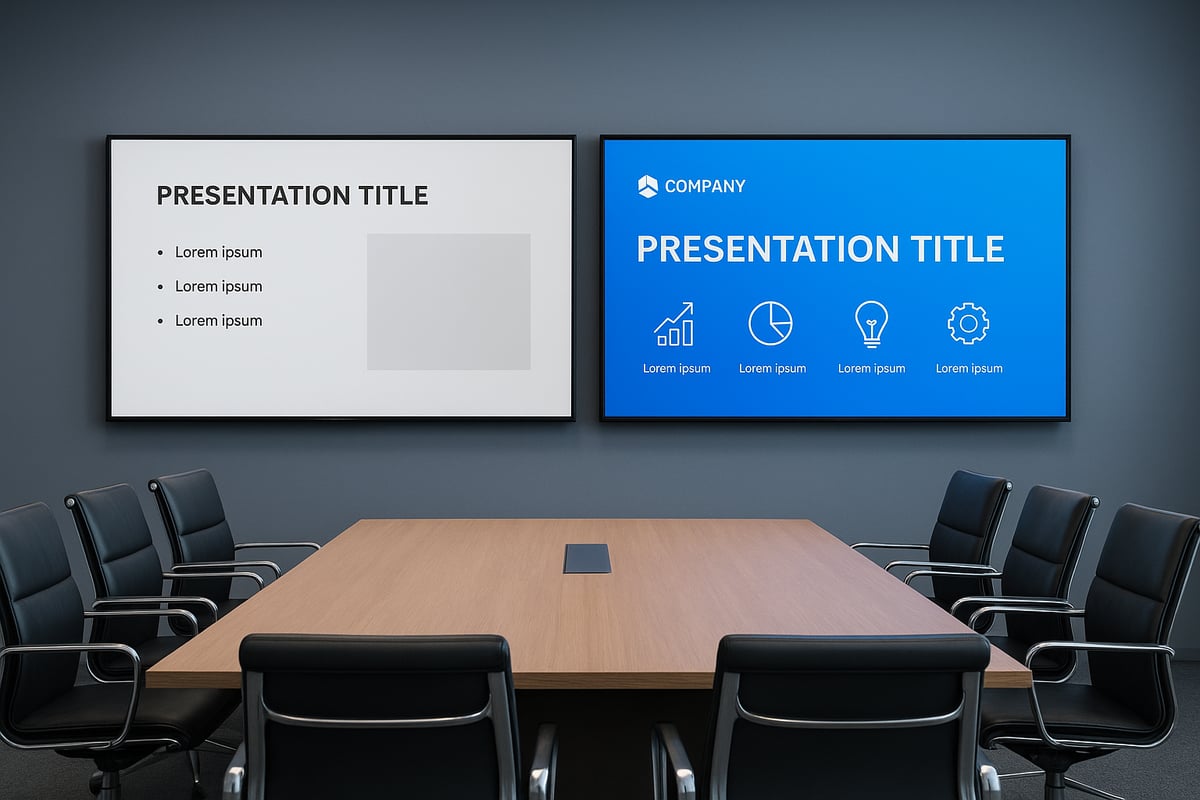
Let’s look at how branding powerpoint impacts various audiences. Executives are more likely to take your message seriously if your visuals reflect a cohesive, authoritative brand. Clients and investors appreciate the professionalism, which can influence their decision-making. For internal teams, branded decks help maintain alignment and clarity. Compare the features of generic versus on-brand slides:

Feature Generic Slide On-Brand Slide
Logo Placement Absent or inconsistent Consistent, strategic
Color Palette Random, mismatched Aligned with brand colors
Typography Default fonts Brand-approved fonts
Imagery Stock or unrelated Custom, brand-specific
Messaging Neutral, bland Reflects brand personality

However, many presenters fall into common pitfalls. These include inconsistent use of brand assets, cluttered layouts, and neglecting the importance of visual hierarchy. Such mistakes can confuse audiences and dilute your message. For financial and tech businesses, in particular, a strong branding powerpoint approach offers a strategic advantage—complex data and innovative ideas are communicated with clarity and authority, setting your team apart from competitors.

A well-executed branding powerpoint strategy ties together your visual identity and persuasive communication. By following proven branding strategy for presentations, you ensure every slide delivers impact and supports your broader business objectives. In today’s fast-paced, digitally connected world, investing in cohesive branding is no longer optional—it’s essential for success.
The Importance of Branding in PowerPoint Presentations

Core Elements of a Branded PowerPoint Deck

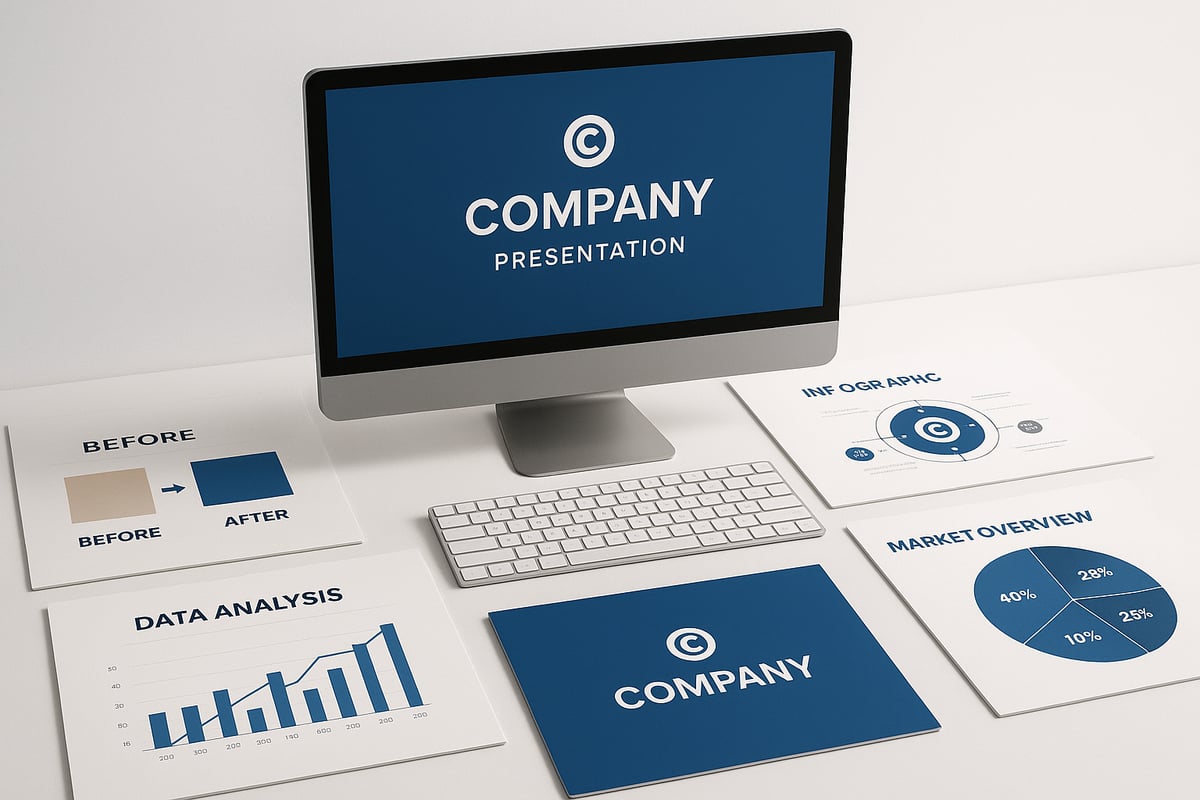
Establishing a cohesive visual identity is essential for any branding powerpoint strategy. Every detail, from colors to icons, must work together to reinforce your brand and create a memorable experience for your audience. Let’s break down the core elements that make a branding powerpoint stand out in 2026.
Core Elements of a Branded PowerPoint Deck

Foundational Elements of a Branded PowerPoint Deck

A successful branding powerpoint begins with a set of foundational elements. These include:

  • Logo: Your brand’s visual signature, placed strategically throughout the deck.
  • Color Palette: A defined set of brand colors used for backgrounds, text, and accents.
  • Typography: Consistent font styles that reflect your brand’s tone.
  • Imagery: Photos and graphics that align with your brand’s message.
  • Iconography: Custom icons that add clarity and reinforce identity.

When these components are applied thoughtfully, they create a unified look and feel that’s instantly recognizable.

The Importance of Brand Guidelines and Consistency

Consistency is the backbone of effective branding powerpoint design. Clear brand guidelines ensure every slide, whether created by marketing or sales, aligns with your company’s identity. These rules cover logo placement, color usage, and acceptable imagery.

Inconsistent branding can confuse audiences and weaken your message. By following consistency in presentation design, you build trust and recognition with every presentation. Remember, a unified look helps your audience focus on your story instead of distracting design changes.

Translating Brand Values and Personality into Slide Design

Your branding powerpoint should do more than look good—it should communicate your brand’s values and personality. Start by defining the emotions you want your audience to feel. Is your brand innovative, reliable, or playful? Use colors, fonts, and visuals that match these traits.

For example, a tech brand might use bold colors and geometric shapes, while a financial firm might prefer muted tones and clean layouts. By translating values into design, you create a powerpoint deck that resonates on a deeper level.

Master Slides and Template Creation for Scalability

Master slides are a powerful feature in branding powerpoint, allowing you to control the appearance of every slide in your deck. By setting up master layouts with branded elements, you ensure consistency across all future presentations.

Templates save time and make it easier for teams to create on-brand decks without starting from scratch. They also reduce errors and help maintain quality as your organization grows. Invest in creating detailed templates so your branding stays strong, no matter who builds the slides.

Branded Infographics, Data Visualizations, and Storytelling

Data is more persuasive when it’s visually compelling. Incorporate branded infographics and charts that use your color palette, typography, and iconography. This approach not only makes information easier to understand but also reinforces your branding powerpoint throughout the deck.

Effective storytelling combines visuals and data to guide your audience through complex topics. Use branded elements to highlight key insights, making your message both clear and memorable.

Common Mistakes to Avoid

Even the best branding powerpoint strategies can fall short if you overlook key details. Watch out for:

  • Inconsistent use of colors or fonts
  • Low-quality images or off-brand graphics
  • Overcrowded slides with too much text
  • Ignoring accessibility best practices

Avoid these pitfalls to ensure your branded PowerPoint deck delivers impact and professionalism.

Step-by-Step Guide: Building a Branded PowerPoint Presentation

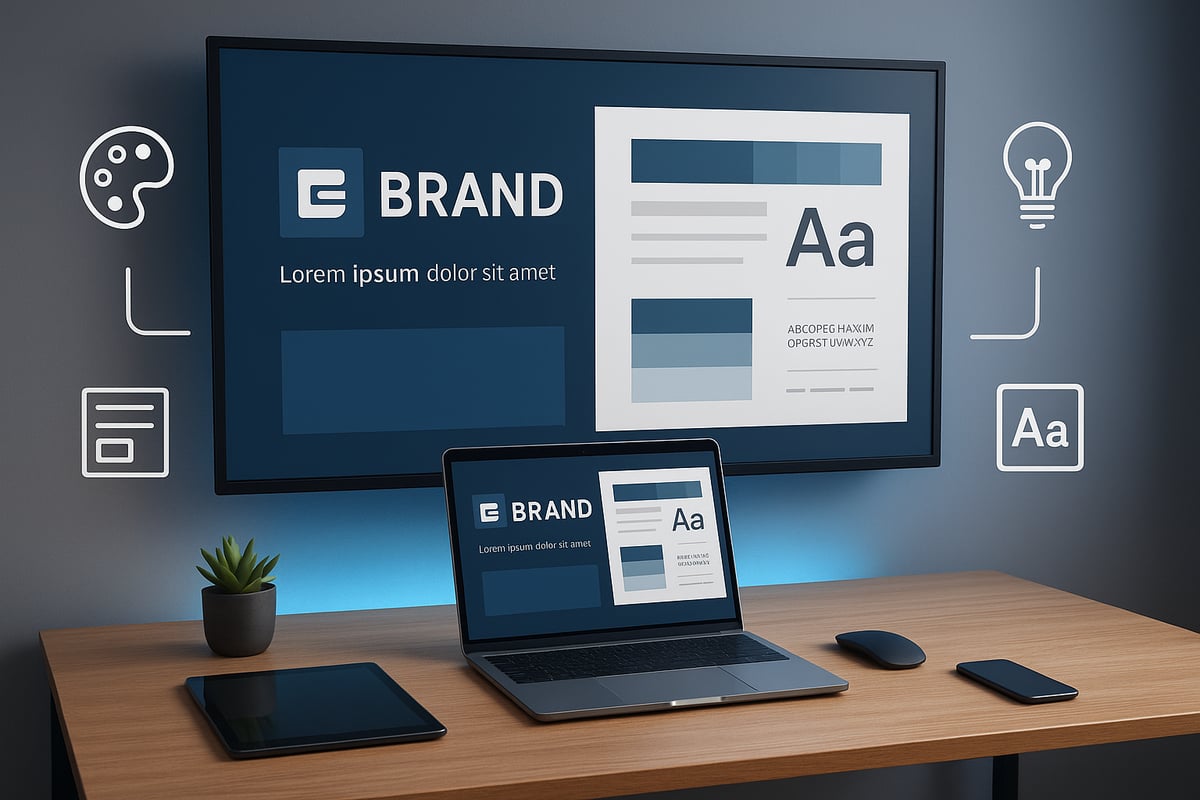
Creating a truly memorable branding powerpoint deck in 2026 requires more than surface-level design. It is a structured process that ensures your slides reflect your brand identity at every touchpoint. Follow this step-by-step guide to transform your presentations into powerful brand assets.
Step-by-Step Guide: Building a Branded PowerPoint Presentation

Step 1: Audit Your Current Slides

Start by reviewing your existing slides for consistency. Look for mismatched colors, fonts, or outdated logos. Identify areas where your branding powerpoint elements are missing or misapplied.

  • Check for off-brand visuals or mixed icon styles.
  • Note slides that lack clear hierarchy or visual cohesion.

A thorough audit sets the foundation for a seamless update.

Step 2: Gather and Organize Brand Assets

Collect all essential brand materials before you begin editing. This includes:

  • Logos (in various file formats)
  • Color palette (RGB/HEX codes)
  • Brand fonts and typography guides
  • Approved imagery and icon sets

Having these assets at your fingertips makes the branding powerpoint process more efficient and ensures consistent application.

Step 3: Set Up PowerPoint Master Slides With Branded Elements

Master slides are the backbone of a cohesive branding powerpoint deck. Set up layouts that reflect your brand’s look and feel, including logo placement, color backgrounds, and default text styles.

For a deeper dive into this crucial step, see this guide to creating effective master slides.

  • Define slide types: title, content, section header, and closing slides.
  • Lock down brand elements to prevent accidental changes.
  • Use placeholders for flexible content insertion.

Step 4: Apply Your Brand Palette and Typography

Apply your brand’s official colors and fonts across all slide types. This reinforces brand recognition and professionalism.

  • Use your primary and secondary colors strategically.
  • Maintain font hierarchy for headings, subheadings, and body text.
  • Avoid mixing non-brand fonts or unauthorized color shades.

Every element should align with your branding powerpoint guidelines.

Step 5: Integrate Branded Imagery and Iconography

Replace generic visuals with brand-approved photos, illustrations, or icons. Consistent imagery helps communicate your brand’s personality.

  • Use high-resolution images that support your message.
  • Stick to an icon set that matches your brand style.
  • Avoid clipart or off-brand graphics.

Step 6: Customize Charts, Graphs, and Data Visuals

Data visuals are often overlooked but are critical for a professional branding powerpoint. Update all charts and graphs to use your brand colors and fonts.

  • Ensure legibility with clear labels and strong contrast.
  • Add branded data markers or custom icons where appropriate.
  • Use templates for recurring chart types.

Step 7: Ensure Consistency in Transitions and Animations

Keep transitions and animations subtle and brand-appropriate. Overuse can distract from your message.

  • Apply the same animation style across similar slide types.
  • Test slide builds for smooth delivery.
  • Avoid overly complex effects that may not render well on all devices.

Consistency here maintains the integrity of your branding powerpoint.

Step 8: Review for Accessibility, Readability, and Device Compatibility

Modern presentations must be accessible to all. Check for:

  • Sufficient color contrast for text and backgrounds.
  • Font sizes that are readable from a distance.
  • Alternative text for images and icons.
  • Compatibility with different devices and screen sizes.

Accessibility is an essential part of any effective branding powerpoint.

Step 9: Solicit Feedback and Revise

Share your draft with stakeholders, team members, or trusted reviewers. Request feedback on both branding and clarity.

  • Use their input to spot inconsistencies or unclear messaging.
  • Revise slides for improved impact and alignment.

Iterative feedback ensures your branding powerpoint is polished and effective.

Step 10: Save Templates and Build a Brand Presentation Toolkit

Once satisfied, save your slides as reusable templates. Create a toolkit with master slides, brand assets, and style guides for future projects.

  • Store templates in a shared location for team access.
  • Document best practices for maintaining brand consistency.

A well-organized toolkit streamlines future branding powerpoint efforts.


Recommended Tools and Add-ins for Branding PowerPoint

Tool/Add-in Purpose Benefit
PowerPoint Designer Layout suggestions Fast, on-brand slide design
Brandfetch Auto-import brand assets Saves setup time
SlideHub Template management Centralizes brand resources
Office Timeline Branded timeline visuals Enhances data storytelling

Expert Tips for Branding PowerPoint Success:

  • Use PowerPoint’s “Reuse Slides” feature to maintain brand consistency across decks.
  • Regularly update your toolkit with new brand assets or templates.
  • Train your team on the branding powerpoint process to ensure everyone is aligned.

By following these steps, you will transform your presentations into compelling, on-brand storytelling tools that stand out in 2026.

Advanced Branding Strategies for PowerPoint in 2026

In 2026, advanced branding powerpoint strategies are redefining how businesses communicate, persuade, and engage. The landscape is shifting rapidly, fueled by technological innovation and evolving audience expectations. Staying ahead means embracing new tools, techniques, and mindsets to ensure your branding powerpoint efforts truly stand out.

Advanced Branding Strategies for PowerPoint in 2026

Interactive and Immersive Features

Modern branding powerpoint decks are no longer static. Interactive features like clickable navigation menus allow audiences to guide their journey through your content. Embedded video clips and live data feeds can turn a traditional slide deck into a dynamic experience.

Motion graphics and micro-animations add polish and professionalism, making complex data more accessible. These elements help maintain attention and facilitate understanding, especially in remote or hybrid settings. Incorporating interactive elements into your branding powerpoint ensures your message resonates and remains memorable.

Harnessing AI and Automation

AI is transforming branding powerpoint design. Smart assistants can suggest layouts, color schemes, and even generate branded graphics that align with your company’s visual identity. Automation tools streamline the creation of consistent slides, ensuring every element—from logo placement to font size—adheres to brand guidelines.

According to Adobe's 2026 Creative Trends forecast, AI-driven design and dynamic branding are at the forefront of presentation innovation. Leveraging these trends allows you to produce visually compelling, on-brand decks with less manual effort and greater creative freedom.

Personalization and Dynamic Branding

Advanced branding powerpoint strategies now include personalized content and dynamic branding. Tailoring presentations for different audiences—executives, clients, or investors—can dramatically improve engagement. Dynamic branding enables you to swap color palettes, logos, or messaging based on the context, without recreating entire decks.

Cross-platform consistency is essential. Whether you use PowerPoint, Keynote, or Google Slides, your branding powerpoint must look and feel the same everywhere. Cloud-based asset libraries and brand management tools help keep visuals unified across all environments.

Measuring Impact and Future-Proofing

The effectiveness of your branding powerpoint can be measured using analytics tools that track engagement, recall, and conversion rates. Integrating feedback loops and performance data helps refine your approach and deliver better results over time.

Storytelling is still at the core of impactful branding powerpoint presentations. Combining strong narratives with branded visuals increases memorability and influence, as highlighted by Good design plus storytelling equals impactful presentations. To future-proof your branding powerpoint, stay agile. Monitor emerging technologies and design trends, then adapt your templates and assets accordingly.

Conclusion

Adopting advanced branding powerpoint strategies in 2026 means leveraging interactivity, AI, personalization, analytics, and agile design. By integrating these approaches, you ensure your presentations remain persuasive and relevant, no matter how the business landscape evolves.

Actionable Tips and Best Practices for Branded PowerPoint Success

Building a standout branding powerpoint is as much about process as it is about design. By following proven best practices, you can ensure every presentation not only shines visually but also reinforces your brand identity at every touchpoint.

Essential Do’s and Don’ts

Achieving consistency with your branding powerpoint starts with a disciplined approach. Do use your approved logo, brand colors, and fonts on every slide. Ensure all visuals align with your guidelines, and keep messaging clear and on-brand.

Do not rely on default templates or mix random design elements. Avoid overloading slides with too much text or inconsistent imagery. For more on common pitfalls, the Corporate Design Report 02-2025 highlights key mistakes to avoid and the value of strict brand compliance.

A simple table can help you review:

Do’s Don’ts
Use brand-approved assets Use generic templates
Maintain visual hierarchy Overcrowd with content
Keep slides accessible Ignore color contrast

Pre-Delivery Checklist

Before sharing your branding powerpoint, run through a checklist to catch any errors or inconsistencies. This step ensures your slides are polished and professional.

  • Verify colors, fonts, and logo placement.
  • Check for consistent image style and quality.
  • Review slide master settings and transitions.
  • Test on multiple devices for compatibility.
  • Confirm accessibility features like alt text.

A thorough review helps you catch details that can make or break the impression your presentation leaves.

Creativity vs. Brand Guidelines

Balancing creativity and compliance is key in a branding powerpoint. While your guidelines provide structure, they should not stifle innovative ideas.

Consider using creative layouts, custom icons, and dynamic visuals within your brand framework. Remember, creativity works best when it enhances, not distracts from, your core message.

When in doubt, consult your brand guide or a design expert to ensure your creative choices still align with your branding powerpoint standards.

Keeping Branding Fresh

To keep your branding powerpoint relevant, regularly refresh templates and content. Stay informed on design innovations, such as bold typography and interactive elements, to keep your decks engaging.

Review emerging trends annually. For inspiration, see Branding Design Trends Every Business Should Watch in 2026, which explores styles like retro-futurism and dynamic layouts.

Update your brand assets as your business evolves, ensuring your presentations never feel outdated.

Training and Continuous Improvement

Empower your team to master branding powerpoint with ongoing training. Share updated templates, provide clear documentation, and hold workshops on best practices.

Encourage feedback after each major presentation. Use analytics and audience input to identify areas for improvement and refine your slides over time.

Investing in skill-building and process review fosters a culture of brand excellence and ensures your presentations continue to deliver impact.


News & Updates...

Discover the 7 essential elements every biotech deck needs in 2026 to win investors. Learn expert tips on storytelling, data, visuals, and regulatory strategy.

Outsource PowerPoint presentation creation with confidence using this 2026 guide Explore expert tips benefits cost insights and proven strategies for business success