Power Point Designer Guide: Unlock Creative Presentations 2026

Imagine captivating your audience with presentations that look like they were crafted by a design team, all in just minutes. In 2026, creative storytelling is more essential than ever, and power point designer gives every professional the tools to stand out. This guide will show you how to harness its AI-driven features to build visually stunning, effective slides that leave a lasting impression. Ready to transform your approach? Dive in for expert strategies, troubleshooting tips, and a step-by-step roadmap to presentation excellence.

Understanding PowerPoint Designer: The Basics

PowerPoint presentations have transformed dramatically in recent years. For professionals seeking to boost their impact, mastering power point designer is now essential. This section unpacks what makes power point designer such a pivotal tool, from its AI-driven capabilities to its broad accessibility and impressive benefits. By understanding these fundamentals, you can unlock a new level of creativity and efficiency in your slides.

Understanding PowerPoint Designer: The Basics

What is PowerPoint Designer?

Power point designer is an AI-powered assistant embedded within PowerPoint, designed to automate and enhance slide creation. Unlike traditional templates, power point designer analyzes your content in real time and instantly generates multiple polished layout suggestions. For example, typing "Hello" on a slide can produce a variety of design ideas, each tailored to your text. This tool saves significant time and elevates the visual appeal of presentations, making professional results accessible to all users. For more foundational advice on slide improvement, see these Simple PowerPoint design tips.

Key Requirements and Compatibility

Power point designer supports Windows, Mac, PowerPoint Online, iOS (iPad), and Android (tablet) platforms. To access full features, a Microsoft 365 or Office 365 subscription is typically required, with PowerPoint Online offering some free suggestions. Minimum versions include Windows Version 1511+ and Mac 15.26.0.160910+. Note that power point designer is not available on smartphones, and mobile devices may have limited functionality. PowerPoint Online can suggest up to 10 design ideas per slide, while desktop versions provide up to 8. Compatibility ensures a seamless experience for most users.

Platform Supported Minimum Version Max Suggestions
Windows Yes 1511+ 8
Mac Yes 15.26.0.160910+ 8
PowerPoint Online Yes N/A 10
iOS (iPad) Yes Latest 8
Android (Tablet) Yes Latest 8

How PowerPoint Designer Works

Power point designer operates by continuously analyzing your slide content, including text, images, and charts. It uses AI to suggest optimal layouts, imagery, and color schemes that best fit your material. The tool adapts its recommendations based on the type and amount of content present. For instance, if you add a list, power point designer can convert it into a SmartArt graphic for enhanced clarity. This ensures visual consistency across every slide, creating presentations that look cohesive and professionally designed with minimal manual effort.

Benefits of Using PowerPoint Designer in 2026

Adopting power point designer in your workflow can reduce slide creation time from hours to minutes. The tool brings professional-quality design to users of all skill levels, increasing engagement and retention among audiences. It offers the flexibility to iterate and refresh designs instantly, which is critical in fast-paced business and academic environments. By leveraging power point designer, presenters gain a competitive edge, delivering more persuasive and visually impressive presentations that stand out in any field.

Step-by-Step Guide: Unlocking Creative Presentations with PowerPoint Designer

Unlocking the full potential of power point designer starts with a clear understanding of its setup and workflow. This guide will walk you through activating Designer, using it to craft visually impressive slides, customizing suggestions, and applying cohesive designs across your entire presentation.

Step-by-Step Guide: Unlocking Creative Presentations with PowerPoint Designer

Activating and Setting Up PowerPoint Designer

Before you can use power point designer, you need to make sure it is enabled on your device. Start by opening PowerPoint and navigating to the Design tab. Look for the Design Ideas button. If you see it, power point designer is available.

To activate Designer on Windows, go to File, select Options, then choose General. Ensure the "Automatically show me design ideas" box is checked. On a Mac, click PowerPoint in the menu, select Preferences, then General, and check the same option. These settings allow power point designer to suggest layouts as soon as you add content.

Privacy settings are also important. Designer requires connected experiences to function, so your privacy settings should permit this. If you are unsure, check your organization’s IT policies or consult the help menu.

If you need a more detailed walkthrough, the PowerPoint Designer advanced guide provides comprehensive setup instructions and troubleshooting tips. Ensuring these settings are correct is the first step toward creative, professional presentations.

Creating Slides with Designer: Chronological Steps

Once power point designer is activated, begin by adding your content to a new slide. Enter your text, insert images, or add charts. As soon as you do, the Design Ideas panel should open automatically, presenting you with a range of visually engaging layouts.

Follow these steps for a smooth workflow:

  1. Add your desired content to the slide.
  2. Click the Design Ideas button if the panel does not appear.
  3. Browse through the 8–10 layout suggestions generated by power point designer.
  4. Click on a design to apply it instantly to your slide.
  5. If you are not satisfied, use Ctrl+Z to undo or reopen the panel for new ideas.

Each time you modify your text or images, power point designer refreshes its suggestions, offering new creative possibilities. For best results, use PowerPoint’s default themes, as custom templates may limit available options. This process turns basic slides into eye-catching visuals in just moments.

Customizing and Editing Design Ideas

After applying a suggested layout from power point designer, you can further refine your slide. Edit your text directly within the design, resize or reposition images, and adjust other elements to fit your message.

To personalize your slide, try changing color schemes or replacing icons with those from Microsoft’s built-in library. For example, if you select a timeline graphic, you can adjust the dates, swap out illustrations, or update the order of events. This flexibility lets you maintain your unique style while benefiting from Designer’s automation.

Keep in mind that certain custom shapes or objects may restrict power point designer’s ability to generate new ideas. If you run into limitations, simplify your slide and reapply Designer, then add custom elements afterward. This balance between automation and manual tweaking helps you achieve both creativity and control.

Applying Designer Across Multiple Slides

Maintaining a consistent visual identity throughout your presentation is crucial. Power point designer helps by offering strategies to apply cohesive designs across all slides. Start by selecting a strong title-slide photo and a color scheme that matches your brand.

To apply a design to multiple slides, select the slides you want, then use the Design Ideas panel to choose a layout. Batch editing allows you to update several slides at once, ensuring uniformity. For effective visual storytelling, repeat key colors, fonts, and imagery across sections.

For example, use your company’s colors and logo on every slide to reinforce branding. This approach not only looks professional but also supports your message with visual consistency. With power point designer, you can efficiently manage large presentations while keeping every slide on brand.

Advanced Features and Creative Applications

Unlocking the full creative potential of power point designer means exploring its advanced features. These tools transform ordinary slides into compelling, professional-grade presentations. In this section, you will discover how to leverage data visualization, dynamic imagery, brand customization, and accessibility capabilities to elevate your slides.

Advanced Features and Creative Applications

Designer for Data Visualization and SmartArt

Power point designer excels at turning raw data into visually engaging stories. When you add a list, process, or timeline to your slide, it automatically suggests SmartArt graphics that clarify your message. These suggestions are not limited to basic lists. The tool recognizes patterns and transforms them into process flows, cycles, or hierarchy diagrams, making complex information digestible.

Tables and charts also benefit from power point designer’s real-time analysis. It identifies opportunities to enhance readability by adjusting layouts, colors, and even font sizes for clarity. For instance, a multi-step process can be visualized instantly as a linear or circular diagram, while financial data tables become more attractive and easier to scan.

Benefits include:

  • Automatic conversion of bullet lists to SmartArt
  • Enhanced chart and table styling for impact
  • Visual storytelling for technical and financial topics

By reducing manual effort, power point designer enables you to present data-driven insights with minimal design experience, ensuring that your audience remains engaged and informed.

Using Images, Icons, and Illustrations Effectively

Power point designer brings your slides to life by integrating Microsoft’s extensive icon library and premium stock photos. When you insert content, the AI analyzes your topic and suggests high-quality, relevant visuals. This feature includes facial recognition and color extraction, allowing the designer to harmonize multiple images and create a cohesive look.

For slides with up to six images, power point designer automatically resizes and arranges visuals for maximum clarity without clutter. You can swap out illustrations or modify suggestions, letting you fine-tune the visual narrative. For those seeking even more creative control, new AI-powered image editing features are available, as detailed in AI-powered image editing in PowerPoint.

Tips for impactful images:

  • Use suggested icons to reinforce key points
  • Replace default pictures with branded or context-specific visuals
  • Adjust layouts if images overlap or distract from your message

With power point designer, you can quickly achieve a polished, professional result that supports your story.

Enhancing Brand Identity and Customization

Maintaining a consistent brand identity is crucial for business presentations. Power point designer empowers users to apply brand colors, fonts, and styles across all slides. When you upload your logo or set a custom color palette, the tool incorporates these elements into its design suggestions.

You can further customize layouts after applying them. Edit text, swap icons, or refine color schemes to align with your corporate guidelines. For example, you might use a branded title-slide photo and carry the color scheme through every section. This ensures that every slide reflects your organization’s visual language.

Customization Option Designer Feature Manual Adjustment
Brand Colors Yes Yes
Fonts Yes Yes
Logos Yes Yes
Layout Tweaks Yes Yes

By balancing automation and manual edits, power point designer delivers both efficiency and creative freedom, enabling your team to maintain a strong, memorable brand presence.

Accessibility and Inclusivity Features

Power point designer is committed to making presentations accessible to everyone. The AI suggests layouts that optimize color contrast and font size, supporting readability for diverse audiences. When creating slides, it checks for accessibility issues such as low contrast or small text, and recommends adjustments to enhance clarity.

Examples of accessibility support:

  • Automated suggestions that meet WCAG standards
  • Clear font choices for readability
  • Sufficient color contrast for all viewers

For further inclusivity, review your slides manually and use PowerPoint’s built-in accessibility checker. With these features, power point designer helps ensure your presentations are not only beautiful but also accessible to all.

Troubleshooting and Limitations: Getting the Most from PowerPoint Designer

Unlocking the full potential of power point designer sometimes means navigating common issues and understanding its boundaries. Let’s explore practical troubleshooting steps, recognize current limitations, and discover expert tips to make the most of your creative workflow.

Common Issues and Solutions

Even with the intuitive AI capabilities of power point designer, users occasionally face obstacles. Here are some frequent problems and how to resolve them:

  • Missing “Design Ideas” Button: First, verify your Microsoft 365 subscription and check if your version meets the minimum requirements. Outdated software or expired subscriptions can prevent access.
  • Grayed-Out Button: Ensure you are connected to the internet, as power point designer relies on cloud processing. Select a single slide before clicking the button, as multi-selection may disable suggestions.
  • No Suggestions Generated: Use a default PowerPoint theme and add substantial content (such as text or images) to activate design ideas. Avoid custom shapes or third-party templates, which can interfere with the suggestion engine.
  • IT Restrictions: In some organizations, IT administrators may disable power point designer. If so, contact your IT team or try accessing features via PowerPoint Online.
  • Feature Updates: If you notice missing options, update your Office installation or reinstall PowerPoint. Regular updates ensure compatibility with new AI features.

For users interested in advanced integrations, exploring PowerPoint Designer and Microsoft Copilot integration can provide tailored recommendations and further enhance your design experience.

Regular troubleshooting helps ensure that power point designer remains a reliable tool for visually compelling presentations.

Limitations of PowerPoint Designer

While power point designer is a powerful AI assistant, it does have some clear boundaries:

  • Theme and Template Compatibility: Designer works best with built-in PowerPoint themes. Custom or third-party templates may block suggestions.
  • Content Limits: Slides can support up to 6 images and 1 chart for optimal design ideas. Exceeding this may stop suggestions from appearing.
  • Object Restrictions: Slides with hand-drawn shapes or too many elements can limit designer’s ability to generate layouts.
  • Co-Authoring Limitations: If multiple users are editing a slide simultaneously, suggestions may not appear.
  • Layout Requirements: Certain features only work with Title or Title + Content layouts.

Here’s a quick reference table:

Limitation Type Description
Theme Compatibility Only built-in themes fully supported
Image/Chart Limit Max 6 images, 1 chart per slide
Object Restrictions No support for hand-drawn shapes, excess items
Co-Authoring No suggestions with multiple editors
Layout Preferences Title and Title + Content layouts preferred

Understanding these limitations helps you plan your slides for maximum effectiveness with power point designer.

Tips for Overcoming Limitations

If you hit a wall with power point designer, these strategies can help you keep your creative momentum:

  • Switch to PowerPoint Online: The latest features and higher suggestion limits are often available in the cloud version.
  • Remove Problematic Elements: Temporarily delete shapes or objects that block suggestions, apply the design, then reinsert them.
  • Batch Design and Manual Tweaks: Apply designer to slides in batches, then fine-tune layouts manually for custom branding or data visualization.
  • Stay Updated: Regularly update PowerPoint to ensure compatibility with new AI-driven design features.
  • Upload Desktop Files: If you designed slides offline, upload them to PowerPoint Online for additional design ideas and enhancements.

By using these workarounds, you can maximize the capabilities of power point designer, ensuring your presentations remain visually impressive and on-brand.

Expert Strategies for Next-Level Presentations

Unlocking the full creative potential of power point designer requires moving beyond basic usage. Expert strategies help transform ordinary slides into memorable visual stories, ensure efficiency, and maximize impact in collaborative environments. Let’s explore advanced techniques that position your presentations at the forefront in 2026.

Visual Storytelling Techniques with Designer

Great presentations tell a story. With power point designer, you can structure your slides to guide the audience through a clear, compelling narrative. Start by mapping your key message, then use Designer layouts to visually highlight each chapter of your story.

For example, process and timeline templates help illustrate progress or change over time. Comparison layouts make data-driven arguments easy to digest. Incorporate a mix of visuals and concise text for maximum engagement.

Designer’s SmartArt and branded visual suggestions give every slide a professional polish. Explore creative PowerPoint design strategies for more inspiration on transforming standard decks into memorable stories. This approach not only elevates your message but also sets you apart in competitive business and tech environments.

Maximizing Efficiency and Consistency

Efficiency and consistency are critical for large-scale or recurring presentations. Power point designer accelerates slide creation by providing instant, cohesive layouts across all slides, eliminating manual adjustments.

Use templates in combination with Designer to maintain brand standards and visual harmony. Batch-edit features let you apply design updates to multiple slides, saving hours on revisions. For marketing and communications teams, this means faster turnaround and reliable output.

A consistent design language strengthens your brand’s identity and makes complex information more accessible. With power point designer, every deck can look as if a professional designer crafted it.

Integrating Designer with Collaboration and Cloud Tools

Modern teams often work together remotely, requiring seamless collaboration. Power point designer integrates smoothly with cloud-based tools like PowerPoint Online, enabling real-time co-authoring without sacrificing design quality.

Team members can suggest edits, while Designer maintains visual consistency throughout the deck. Sharing links and version histories simplifies feedback cycles and reduces errors.

When working on investor presentations or multi-author projects, Designer’s AI ensures every slide adheres to the same high standard. This integration empowers teams to deliver polished, unified presentations, no matter where contributors are located.

When to Seek Professional Help: Beyond Automated Design

While power point designer automates much of the design process, there are moments when expert input is essential. High-stakes presentations, such as investor pitches or product launches, often require custom visuals, unique data storytelling, and advanced animation.

Professional agencies bring a level of creativity and technical skill that surpasses automated tools. They can interpret complex data, develop unique visual metaphors, and tailor narratives for executive audiences.

Recognize when your presentation needs that extra layer of refinement. Investing in professional design ensures your message is not only clear but also unforgettable.

Partnering with Prznt Perfect: Elevate Your Presentation Design

For mission-critical presentations in finance and technology, Prznt Perfect offers specialized expertise beyond what power point designer can provide. Their team delivers creative consulting, visual storytelling, marcom design, and comprehensive brand management.

Power Point Designer Guide: Unlock Creative Presentations 2026 - Partnering with Prznt Perfect: Elevate Your Presentation Design

Prznt Perfect transforms complex data into actionable, compelling narratives. With a proven track record—over $2.3 billion raised through client pitch decks, five-star ratings, and partnerships with Fortune 500 companies—they help clients achieve measurable results.

Consider professional support when your presentation must make a lasting impact. Prznt Perfect elevates your deck from automated design to executive-level storytelling, ensuring your content stands out in any boardroom.

We offer free 30-min consultation on the presentation design audit
and hiring the right visual 
comms professional, let’s talk!
Shedule a call
Shedule a call
"I understand" goes a step further into the cognitive dance of persuasion. It's where the audience begins to see the connections between the facts, to grasp the nuances of the problem and the elegance of the solution.
  • This is some text inside of a div block.
    lay out the facts clearly and compellingly. Use data to establish the ground reality, but remember that facts alone are like the individual strands of a tapestry—necessary but not complete.
    lay out the facts clearly and compellingly. Use data to establish the ground reality, but remember that facts alone are like the individual strands of a tapestry—necessary but not complete.
  • This is some text inside of a div block.
    lay out the facts clearly and compellingly. Use data to establish the ground reality, but remember that facts alone are like the individual strands of a tapestry—necessary but not complete.

We offer free 30-min consultation on the presentation design audit

and hiring the right visual 
comms professional, let’s talk!

Shedule a call

"I understand" goes a step further into the cognitive dance of persuasion. It's where the audience begins to see the connections between the facts, to grasp the nuances of the problem and the elegance of the solution.

  • - 1 -
    Consistency at Scale:

    Biotech Market Trends 2024: Tailoring Your Pitch Deck to Current Industry Dynamics.

  • - 2 -
    Efficiency and Speed:

    The traditional process of manually updating presentations is not only slow but also prone to bottlenecks, especially when dealing with large volumes of slides. Automation dramatically accelerates this process, enabling designers to apply changes across hundreds of slides in the time it would take to manually update a single one. This efficiency is a game-changer for agencies working under tight deadlines or managing multiple projects simultaneously.

  • - 3 -
    Enhanced Creativity:

    With the burden of manual updates lifted, designers can allocate more time and energy to the creative aspects of presentation design. This freedom allows for deeper exploration of innovative design concepts, experimentation with new visual storytelling techniques, and the development of more engaging and interactive presentations. Automation doesn't stifle creativity; it amplifies it, enabling designers to push the boundaries of what's possible in corporate presentation design.

  • - 4 -
    Error Reduction:

    Manual updates are inherently prone to inconsistencies and mistakes, from misaligned logos to incorrect font sizes. These errors can detract from the professionalism of a presentation and, by extension, the corporate image. Automation minimizes these risks by ensuring that updates are applied uniformly and accurately across all slides, enhancing the overall quality and integrity of the presentation.

  • - 5 -
    Cost-Effectiveness:

    The time savings afforded by automation directly translate to cost savings for both the design agency and its clients. By reducing the hours spent on manual updates, agencies can optimize their workflows and resources, allowing them to take on more projects without compromising on quality. This efficiency can also make high-quality presentation design services more affordable and accessible to a broader range of businesses.

Power Point Designer Guide: Unlock Creative Presentations 2026
Unlock expert tips and strategies for using power point designer to create stunning presentations in 2026 Enhance your slides with AI design and advanced features

Imagine captivating your audience with presentations that look like they were crafted by a design team, all in just minutes. In 2026, creative storytelling is more essential than ever, and power point designer gives every professional the tools to stand out. This guide will show you how to harness its AI-driven features to build visually stunning, effective slides that leave a lasting impression. Ready to transform your approach? Dive in for expert strategies, troubleshooting tips, and a step-by-step roadmap to presentation excellence.

Understanding PowerPoint Designer: The Basics

PowerPoint presentations have transformed dramatically in recent years. For professionals seeking to boost their impact, mastering power point designer is now essential. This section unpacks what makes power point designer such a pivotal tool, from its AI-driven capabilities to its broad accessibility and impressive benefits. By understanding these fundamentals, you can unlock a new level of creativity and efficiency in your slides.

Understanding PowerPoint Designer: The Basics

What is PowerPoint Designer?

Power point designer is an AI-powered assistant embedded within PowerPoint, designed to automate and enhance slide creation. Unlike traditional templates, power point designer analyzes your content in real time and instantly generates multiple polished layout suggestions. For example, typing "Hello" on a slide can produce a variety of design ideas, each tailored to your text. This tool saves significant time and elevates the visual appeal of presentations, making professional results accessible to all users. For more foundational advice on slide improvement, see these Simple PowerPoint design tips.

Key Requirements and Compatibility

Power point designer supports Windows, Mac, PowerPoint Online, iOS (iPad), and Android (tablet) platforms. To access full features, a Microsoft 365 or Office 365 subscription is typically required, with PowerPoint Online offering some free suggestions. Minimum versions include Windows Version 1511+ and Mac 15.26.0.160910+. Note that power point designer is not available on smartphones, and mobile devices may have limited functionality. PowerPoint Online can suggest up to 10 design ideas per slide, while desktop versions provide up to 8. Compatibility ensures a seamless experience for most users.

Platform Supported Minimum Version Max Suggestions
Windows Yes 1511+ 8
Mac Yes 15.26.0.160910+ 8
PowerPoint Online Yes N/A 10
iOS (iPad) Yes Latest 8
Android (Tablet) Yes Latest 8

How PowerPoint Designer Works

Power point designer operates by continuously analyzing your slide content, including text, images, and charts. It uses AI to suggest optimal layouts, imagery, and color schemes that best fit your material. The tool adapts its recommendations based on the type and amount of content present. For instance, if you add a list, power point designer can convert it into a SmartArt graphic for enhanced clarity. This ensures visual consistency across every slide, creating presentations that look cohesive and professionally designed with minimal manual effort.

Benefits of Using PowerPoint Designer in 2026

Adopting power point designer in your workflow can reduce slide creation time from hours to minutes. The tool brings professional-quality design to users of all skill levels, increasing engagement and retention among audiences. It offers the flexibility to iterate and refresh designs instantly, which is critical in fast-paced business and academic environments. By leveraging power point designer, presenters gain a competitive edge, delivering more persuasive and visually impressive presentations that stand out in any field.

Step-by-Step Guide: Unlocking Creative Presentations with PowerPoint Designer

Unlocking the full potential of power point designer starts with a clear understanding of its setup and workflow. This guide will walk you through activating Designer, using it to craft visually impressive slides, customizing suggestions, and applying cohesive designs across your entire presentation.
Step-by-Step Guide: Unlocking Creative Presentations with PowerPoint Designer

Activating and Setting Up PowerPoint Designer

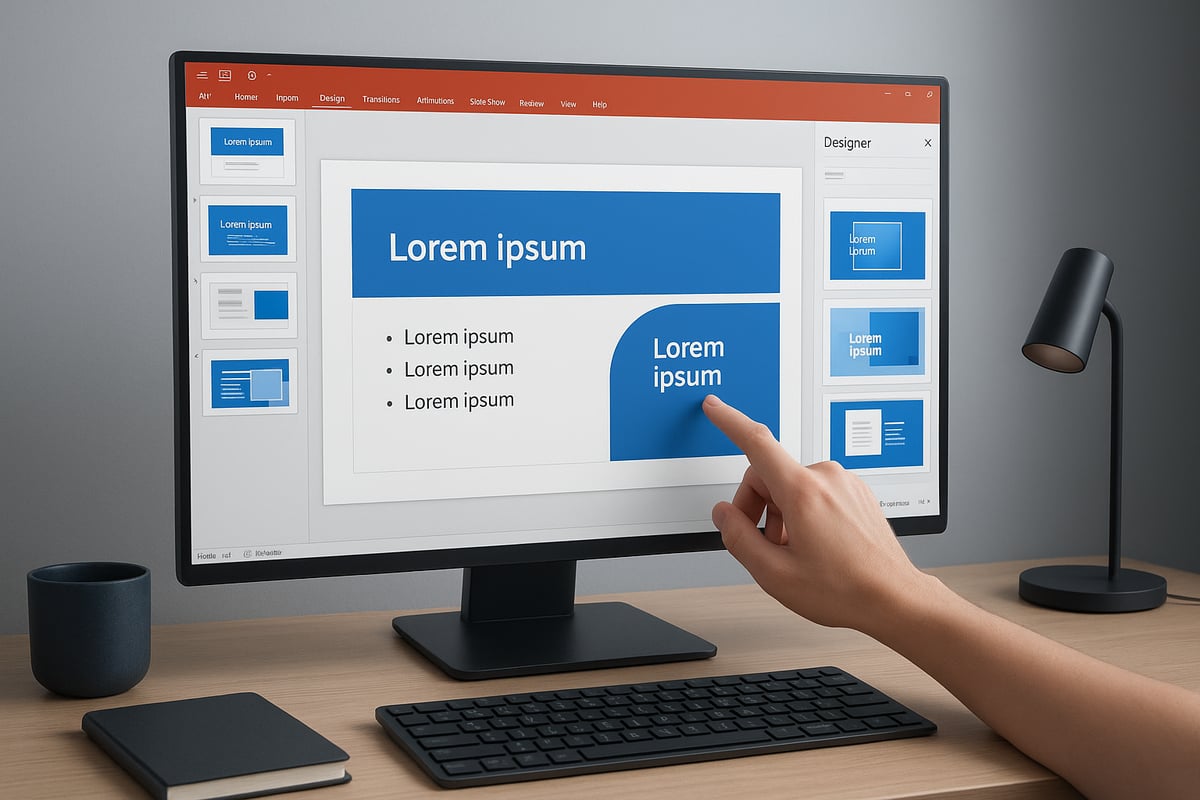
Before you can use power point designer, you need to make sure it is enabled on your device. Start by opening PowerPoint and navigating to the Design tab. Look for the Design Ideas button. If you see it, power point designer is available.

To activate Designer on Windows, go to File, select Options, then choose General. Ensure the "Automatically show me design ideas" box is checked. On a Mac, click PowerPoint in the menu, select Preferences, then General, and check the same option. These settings allow power point designer to suggest layouts as soon as you add content.

Privacy settings are also important. Designer requires connected experiences to function, so your privacy settings should permit this. If you are unsure, check your organization’s IT policies or consult the help menu.

If you need a more detailed walkthrough, the PowerPoint Designer advanced guide provides comprehensive setup instructions and troubleshooting tips. Ensuring these settings are correct is the first step toward creative, professional presentations.

Creating Slides with Designer: Chronological Steps

Once power point designer is activated, begin by adding your content to a new slide. Enter your text, insert images, or add charts. As soon as you do, the Design Ideas panel should open automatically, presenting you with a range of visually engaging layouts.

Follow these steps for a smooth workflow:

  1. Add your desired content to the slide.
  2. Click the Design Ideas button if the panel does not appear.
  3. Browse through the 8–10 layout suggestions generated by power point designer.
  4. Click on a design to apply it instantly to your slide.
  5. If you are not satisfied, use Ctrl+Z to undo or reopen the panel for new ideas.

Each time you modify your text or images, power point designer refreshes its suggestions, offering new creative possibilities. For best results, use PowerPoint’s default themes, as custom templates may limit available options. This process turns basic slides into eye-catching visuals in just moments.

Customizing and Editing Design Ideas

After applying a suggested layout from power point designer, you can further refine your slide. Edit your text directly within the design, resize or reposition images, and adjust other elements to fit your message.

To personalize your slide, try changing color schemes or replacing icons with those from Microsoft’s built-in library. For example, if you select a timeline graphic, you can adjust the dates, swap out illustrations, or update the order of events. This flexibility lets you maintain your unique style while benefiting from Designer’s automation.

Keep in mind that certain custom shapes or objects may restrict power point designer’s ability to generate new ideas. If you run into limitations, simplify your slide and reapply Designer, then add custom elements afterward. This balance between automation and manual tweaking helps you achieve both creativity and control.

Applying Designer Across Multiple Slides

Maintaining a consistent visual identity throughout your presentation is crucial. Power point designer helps by offering strategies to apply cohesive designs across all slides. Start by selecting a strong title-slide photo and a color scheme that matches your brand.

To apply a design to multiple slides, select the slides you want, then use the Design Ideas panel to choose a layout. Batch editing allows you to update several slides at once, ensuring uniformity. For effective visual storytelling, repeat key colors, fonts, and imagery across sections.

For example, use your company’s colors and logo on every slide to reinforce branding. This approach not only looks professional but also supports your message with visual consistency. With power point designer, you can efficiently manage large presentations while keeping every slide on brand.

Advanced Features and Creative Applications

Unlocking the full creative potential of power point designer means exploring its advanced features. These tools transform ordinary slides into compelling, professional-grade presentations. In this section, you will discover how to leverage data visualization, dynamic imagery, brand customization, and accessibility capabilities to elevate your slides.
Advanced Features and Creative Applications

Designer for Data Visualization and SmartArt

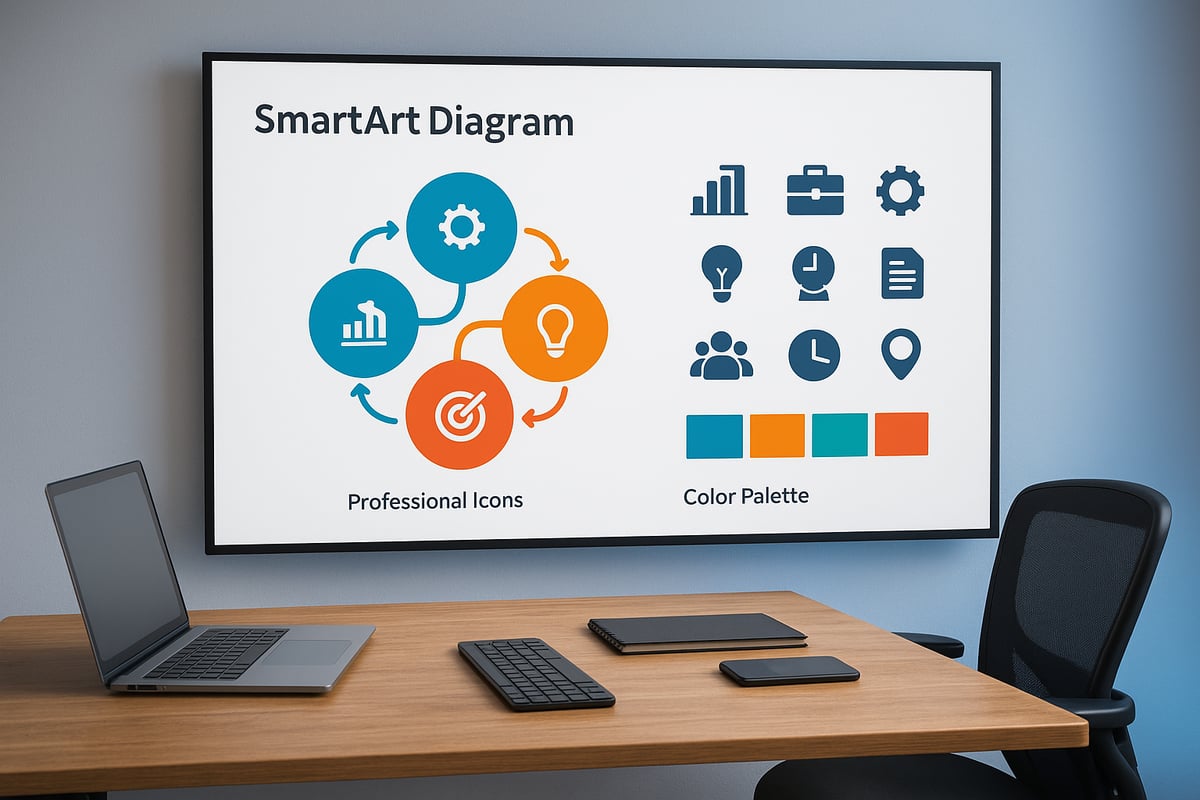
Power point designer excels at turning raw data into visually engaging stories. When you add a list, process, or timeline to your slide, it automatically suggests SmartArt graphics that clarify your message. These suggestions are not limited to basic lists. The tool recognizes patterns and transforms them into process flows, cycles, or hierarchy diagrams, making complex information digestible.

Tables and charts also benefit from power point designer’s real-time analysis. It identifies opportunities to enhance readability by adjusting layouts, colors, and even font sizes for clarity. For instance, a multi-step process can be visualized instantly as a linear or circular diagram, while financial data tables become more attractive and easier to scan.

Benefits include:

  • Automatic conversion of bullet lists to SmartArt
  • Enhanced chart and table styling for impact
  • Visual storytelling for technical and financial topics

By reducing manual effort, power point designer enables you to present data-driven insights with minimal design experience, ensuring that your audience remains engaged and informed.

Using Images, Icons, and Illustrations Effectively

Power point designer brings your slides to life by integrating Microsoft’s extensive icon library and premium stock photos. When you insert content, the AI analyzes your topic and suggests high-quality, relevant visuals. This feature includes facial recognition and color extraction, allowing the designer to harmonize multiple images and create a cohesive look.

For slides with up to six images, power point designer automatically resizes and arranges visuals for maximum clarity without clutter. You can swap out illustrations or modify suggestions, letting you fine-tune the visual narrative. For those seeking even more creative control, new AI-powered image editing features are available, as detailed in AI-powered image editing in PowerPoint.

Tips for impactful images:

  • Use suggested icons to reinforce key points
  • Replace default pictures with branded or context-specific visuals
  • Adjust layouts if images overlap or distract from your message

With power point designer, you can quickly achieve a polished, professional result that supports your story.

Enhancing Brand Identity and Customization

Maintaining a consistent brand identity is crucial for business presentations. Power point designer empowers users to apply brand colors, fonts, and styles across all slides. When you upload your logo or set a custom color palette, the tool incorporates these elements into its design suggestions.

You can further customize layouts after applying them. Edit text, swap icons, or refine color schemes to align with your corporate guidelines. For example, you might use a branded title-slide photo and carry the color scheme through every section. This ensures that every slide reflects your organization’s visual language.

Customization Option Designer Feature Manual Adjustment
Brand Colors Yes Yes
Fonts Yes Yes
Logos Yes Yes
Layout Tweaks Yes Yes

By balancing automation and manual edits, power point designer delivers both efficiency and creative freedom, enabling your team to maintain a strong, memorable brand presence.

Accessibility and Inclusivity Features

Power point designer is committed to making presentations accessible to everyone. The AI suggests layouts that optimize color contrast and font size, supporting readability for diverse audiences. When creating slides, it checks for accessibility issues such as low contrast or small text, and recommends adjustments to enhance clarity.

Examples of accessibility support:

  • Automated suggestions that meet WCAG standards
  • Clear font choices for readability
  • Sufficient color contrast for all viewers

For further inclusivity, review your slides manually and use PowerPoint’s built-in accessibility checker. With these features, power point designer helps ensure your presentations are not only beautiful but also accessible to all.

Troubleshooting and Limitations: Getting the Most from PowerPoint Designer

Unlocking the full potential of power point designer sometimes means navigating common issues and understanding its boundaries. Let’s explore practical troubleshooting steps, recognize current limitations, and discover expert tips to make the most of your creative workflow.

Common Issues and Solutions

Even with the intuitive AI capabilities of power point designer, users occasionally face obstacles. Here are some frequent problems and how to resolve them:

  • Missing “Design Ideas” Button: First, verify your Microsoft 365 subscription and check if your version meets the minimum requirements. Outdated software or expired subscriptions can prevent access.
  • Grayed-Out Button: Ensure you are connected to the internet, as power point designer relies on cloud processing. Select a single slide before clicking the button, as multi-selection may disable suggestions.
  • No Suggestions Generated: Use a default PowerPoint theme and add substantial content (such as text or images) to activate design ideas. Avoid custom shapes or third-party templates, which can interfere with the suggestion engine.
  • IT Restrictions: In some organizations, IT administrators may disable power point designer. If so, contact your IT team or try accessing features via PowerPoint Online.
  • Feature Updates: If you notice missing options, update your Office installation or reinstall PowerPoint. Regular updates ensure compatibility with new AI features.

For users interested in advanced integrations, exploring PowerPoint Designer and Microsoft Copilot integration can provide tailored recommendations and further enhance your design experience.

Regular troubleshooting helps ensure that power point designer remains a reliable tool for visually compelling presentations.

Limitations of PowerPoint Designer

While power point designer is a powerful AI assistant, it does have some clear boundaries:

  • Theme and Template Compatibility: Designer works best with built-in PowerPoint themes. Custom or third-party templates may block suggestions.
  • Content Limits: Slides can support up to 6 images and 1 chart for optimal design ideas. Exceeding this may stop suggestions from appearing.
  • Object Restrictions: Slides with hand-drawn shapes or too many elements can limit designer’s ability to generate layouts.
  • Co-Authoring Limitations: If multiple users are editing a slide simultaneously, suggestions may not appear.
  • Layout Requirements: Certain features only work with Title or Title + Content layouts.

Here’s a quick reference table:

Limitation Type Description
Theme Compatibility Only built-in themes fully supported
Image/Chart Limit Max 6 images, 1 chart per slide
Object Restrictions No support for hand-drawn shapes, excess items
Co-Authoring No suggestions with multiple editors
Layout Preferences Title and Title + Content layouts preferred

Understanding these limitations helps you plan your slides for maximum effectiveness with power point designer.

Tips for Overcoming Limitations

If you hit a wall with power point designer, these strategies can help you keep your creative momentum:

  • Switch to PowerPoint Online: The latest features and higher suggestion limits are often available in the cloud version.
  • Remove Problematic Elements: Temporarily delete shapes or objects that block suggestions, apply the design, then reinsert them.
  • Batch Design and Manual Tweaks: Apply designer to slides in batches, then fine-tune layouts manually for custom branding or data visualization.
  • Stay Updated: Regularly update PowerPoint to ensure compatibility with new AI-driven design features.
  • Upload Desktop Files: If you designed slides offline, upload them to PowerPoint Online for additional design ideas and enhancements.

By using these workarounds, you can maximize the capabilities of power point designer, ensuring your presentations remain visually impressive and on-brand.

Expert Strategies for Next-Level Presentations

Unlocking the full creative potential of power point designer requires moving beyond basic usage. Expert strategies help transform ordinary slides into memorable visual stories, ensure efficiency, and maximize impact in collaborative environments. Let’s explore advanced techniques that position your presentations at the forefront in 2026.

Visual Storytelling Techniques with Designer

Great presentations tell a story. With power point designer, you can structure your slides to guide the audience through a clear, compelling narrative. Start by mapping your key message, then use Designer layouts to visually highlight each chapter of your story.

For example, process and timeline templates help illustrate progress or change over time. Comparison layouts make data-driven arguments easy to digest. Incorporate a mix of visuals and concise text for maximum engagement.

Designer’s SmartArt and branded visual suggestions give every slide a professional polish. Explore creative PowerPoint design strategies for more inspiration on transforming standard decks into memorable stories. This approach not only elevates your message but also sets you apart in competitive business and tech environments.

Maximizing Efficiency and Consistency

Efficiency and consistency are critical for large-scale or recurring presentations. Power point designer accelerates slide creation by providing instant, cohesive layouts across all slides, eliminating manual adjustments.

Use templates in combination with Designer to maintain brand standards and visual harmony. Batch-edit features let you apply design updates to multiple slides, saving hours on revisions. For marketing and communications teams, this means faster turnaround and reliable output.

A consistent design language strengthens your brand’s identity and makes complex information more accessible. With power point designer, every deck can look as if a professional designer crafted it.

Integrating Designer with Collaboration and Cloud Tools

Modern teams often work together remotely, requiring seamless collaboration. Power point designer integrates smoothly with cloud-based tools like PowerPoint Online, enabling real-time co-authoring without sacrificing design quality.

Team members can suggest edits, while Designer maintains visual consistency throughout the deck. Sharing links and version histories simplifies feedback cycles and reduces errors.

When working on investor presentations or multi-author projects, Designer’s AI ensures every slide adheres to the same high standard. This integration empowers teams to deliver polished, unified presentations, no matter where contributors are located.

When to Seek Professional Help: Beyond Automated Design

While power point designer automates much of the design process, there are moments when expert input is essential. High-stakes presentations, such as investor pitches or product launches, often require custom visuals, unique data storytelling, and advanced animation.

Professional agencies bring a level of creativity and technical skill that surpasses automated tools. They can interpret complex data, develop unique visual metaphors, and tailor narratives for executive audiences.

Recognize when your presentation needs that extra layer of refinement. Investing in professional design ensures your message is not only clear but also unforgettable.

Partnering with Prznt Perfect: Elevate Your Presentation Design

For mission-critical presentations in finance and technology, Prznt Perfect offers specialized expertise beyond what power point designer can provide. Their team delivers creative consulting, visual storytelling, marcom design, and comprehensive brand management.

Power Point Designer Guide: Unlock Creative Presentations 2026 - Partnering with Prznt Perfect: Elevate Your Presentation Design

Prznt Perfect transforms complex data into actionable, compelling narratives. With a proven track record—over $2.3 billion raised through client pitch decks, five-star ratings, and partnerships with Fortune 500 companies—they help clients achieve measurable results.

Consider professional support when your presentation must make a lasting impact. Prznt Perfect elevates your deck from automated design to executive-level storytelling, ensuring your content stands out in any boardroom.


News & Updates...

Discover 9 essential branding ppt template ideas for 2026 that elevate brand consistency, boost engagement, and maximize presentation impact for business success.

Master branding presentation success in 2026 with expert strategies, design trends, and actionable steps to engage audiences and elevate your brand’s impact.